|
Adding Title ImageIn the last lesson, we had placed one image...
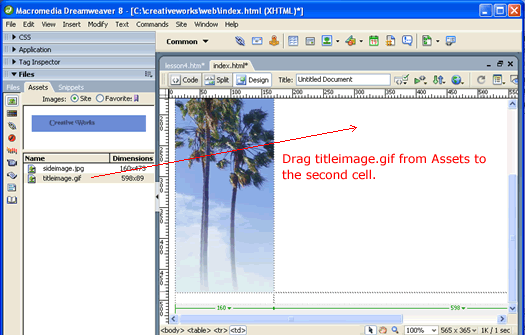
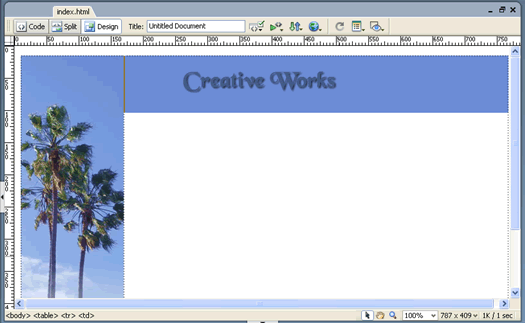
In the design view of index.html, we will add our second image, the titleimage.gif. This time, we will drag the titleimage.gif from the Assets panel as shown.
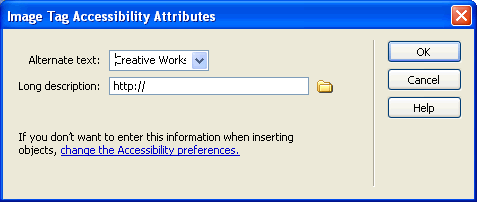
When the Accessibility Attributes dialog shows up, enter Creative Works for the Alternate text.
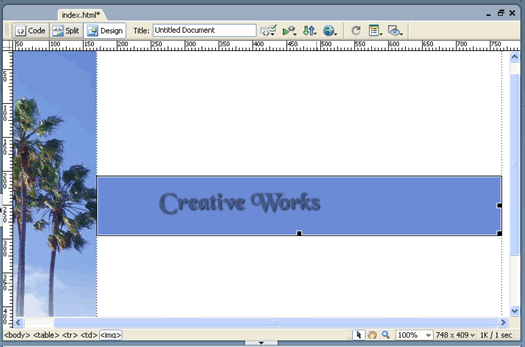
Click Okay and you get ...
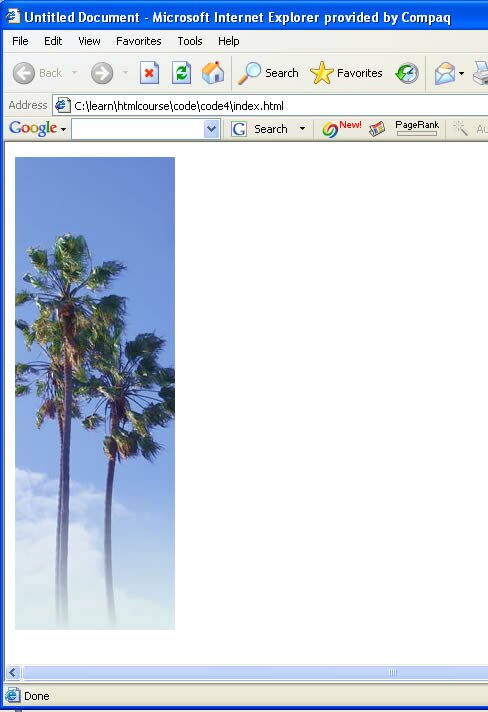
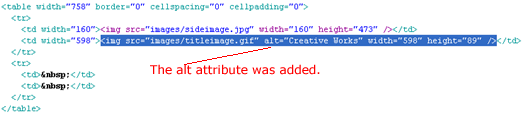
Oops! By default, the image is centered vertically within the table cell. We'll fix that shortly. But first get to the code view to see what difference adding the Alternate text made.
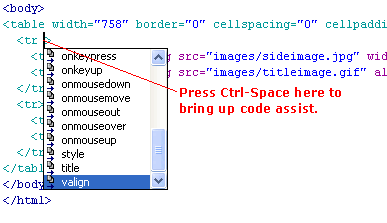
The alt attribute provides alternate text for the images in cases where the user had turned off images, is using a text-based browser, is using a screen reader due to visual impairement, or for search engines to read. We want everything on the table row to be top-aligned. So we add an attribute to the <tr> tag. Type a space after "tr" as if you were about to type another attribute. The press Ctrl-Space
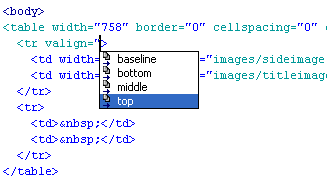
and select valign (for vertical alignment)...
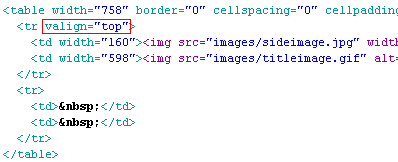
Wow. Dreamweaver provides us with all the possible values for the valign attribute. Choice is now obvious, we want top.
Switching back to design view, we see that we got what we want...
Save file. In the next lesson, we will learn about testing the website.
|
 |
 |
| Roadmap | Lessons | Tutorials | Videos | Books | Links | About |
|
|