|
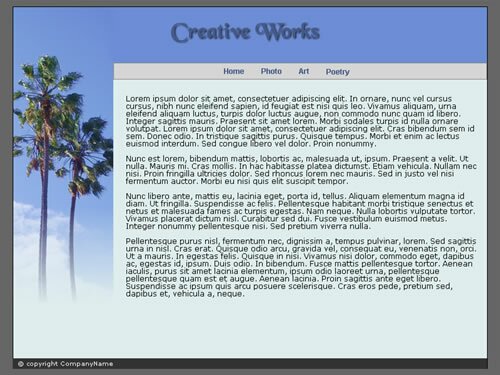
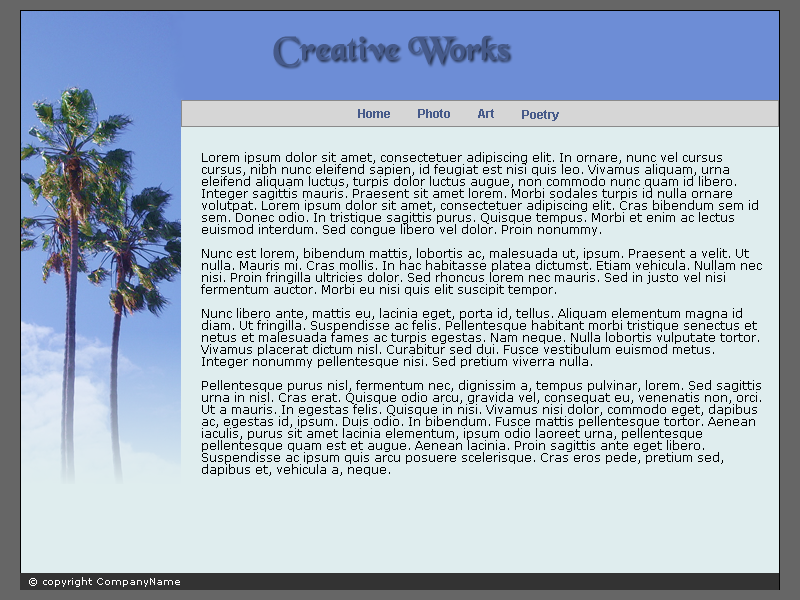
Starting a WebsiteWe are now ready to build our CreativeWorks website. In the Introductory Fireworks lessons, we had created the comp for the website that looks like this ...
You can get the Fireworks file by right-clicking on the following link and selecting Save Target As: creativeworks.png Save this creativeworks.png file in a subfolder called assets under the creativeworks folder that you had created in the previous lessons. We now create another subfolder called web under the creativeworks folder. The web folder will be the actual files of our website that would be uploaded to the web server. In Fireworks, we had also sliced out and exported these two images:
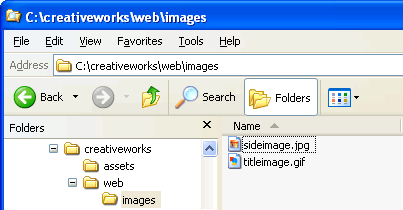
You can download them (sideimage.jpg and titleimage.gif) by right-clicking on the links and save them in a subfolder called images under the web folder. So your directory structure should look like ...
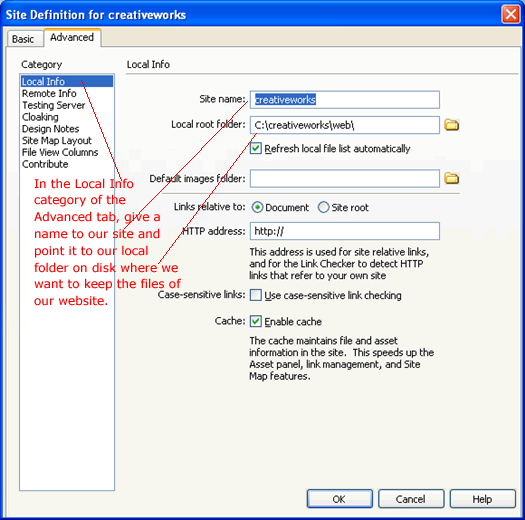
Setting Up Dreamweaver SiteThe first thing to do in Dreamweaver in building a website is to setup a Dreamweaver site. Do Site -> New Site... In the Local Info category of the Advanced tab, give our site the name creativeworks and point it to our web directory as shown.
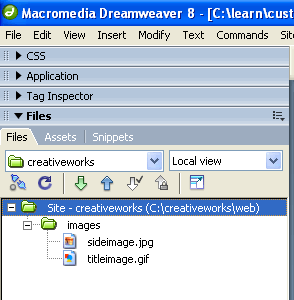
We will not worry about the other advanced settings for now. Click OK. If you look at the Files tab of the Files panel, you will see that it shows the contents of our web folder.
This is where we will manage and create the files for our website. We already have two images of our website in the images folder. And it is typical in industry to place website images under the images folder of our website. Creating the Home PageTo create the first page of our website, do File -> New
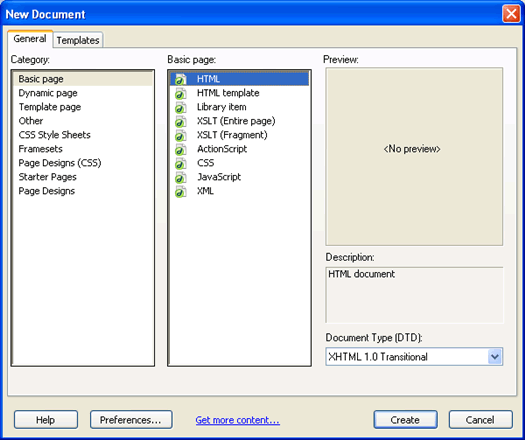
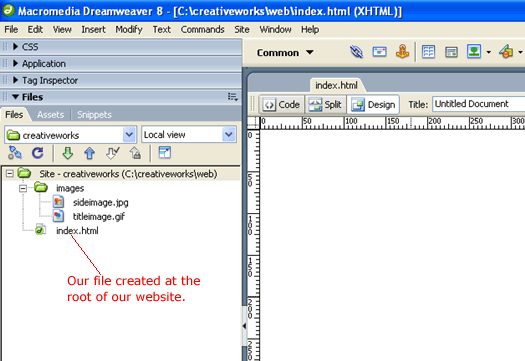
and click Create to the setting shown. The front page of a website, also known as the home page, is the first page that the users will see. This page is ususally named index.htm or index.html because most web servers are set up so to show this page by default if the user does not specify a page in the URL. We save our new page by doing File -> Save and give it the name index.html In the Files panel, we see the file created in the root folder of our website.
Supposing that we had obtained the domain name creativeworks.com and had uploaded the index.html file to our web host, then any body in the world can view our page by typing in http://www.creativewworks.com/index.html. If you omitted the www as in http://creativeworks.com/index.html, it will still work because then the webserver will assume the www subdomain by default. And if the webserver is setup to know index.html as the default page (and virtually all webserver are set up this way), then the user will still be able to get to our page by typing only http://creativeworks.com in the browser. In the next lesson, we will lay out the table structure for the site.
|
 |
 |
| Roadmap | Lessons | Tutorials | Videos | Books | Links | About |
|
|