|
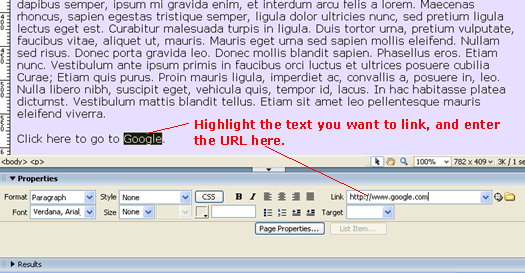
Creating LinksHere is an example of how to create a link that goes to Google when clicked.
This is the code for it...
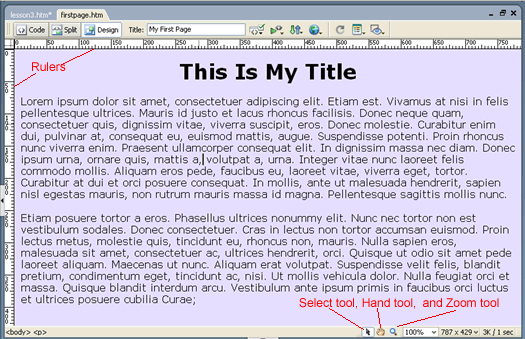
The body of the <a> tag is the text of the link and the href is the URL where the link goes to. Here is my firstpage.htm file so far: firstpage.htm You can view the page in your browser by clicking on the link. Then do a View -> Source in your browser to see the HTML code. Alternatively, you can download the entire file, by right-clicking on the link and select Save Target As. More on Dreamweaver's Design ViewAfter opening the firstpage.htm and then going to Design View, you will notice that it has rulers.
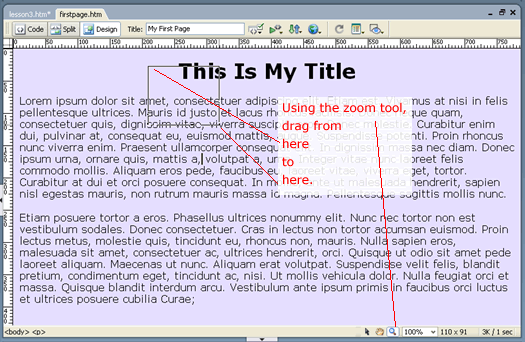
There is also the Select tool, which should be the tool that you would normally be using and is selected by default. Then there is the Hand tool and the Zoom tool. First play with the Zoom tool by ...
Look, you get zooming in Design View! Now you can use your Hand tool and move the page about. Watch as the rulers continues to tell you what scale and where you are at all times.
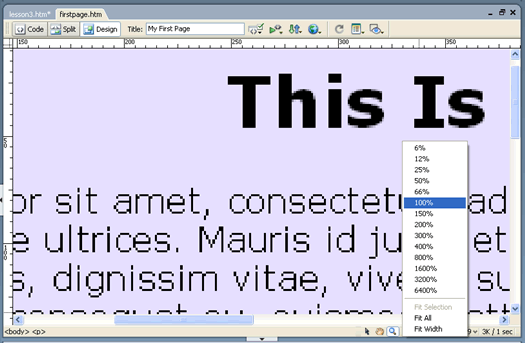
Okay, enough fun. Click the Magnification droplist and go back to 100% from the menu shown above. And then click on the Select tool -- that is the tool that you should normally be in. Code View of Dreamweaver 8Now switch to the code view to see the new Coding toolbar and line numbers which you can turn on and off.
If you had turned off your coding toolbar and want it back, just right-click on any other toolbar to bring up the context menu and checkmark Coding. You see that I had typed in (actually pasted-in) the Lorem Ipsum paragraph as one long line (see line 26 above). Dreamweaver had auto-wrapped that line. Personally, I rather that Dreamweaver display long lines as they are and not wrap them. So I turn off auto-wrap by View -> Code View Options -> uncheck Word Wrap. Make sure that you are in Code view when you do this. Next TimeThat is a good enough of a start. We are now done playing with firstpage.html. In the next lesson, you will start a real website based on the comp created in the Intro Fireworks course.
|
 |
 |
| Roadmap | Lessons | Tutorials | Videos | Books | Links | About |
|
|