|
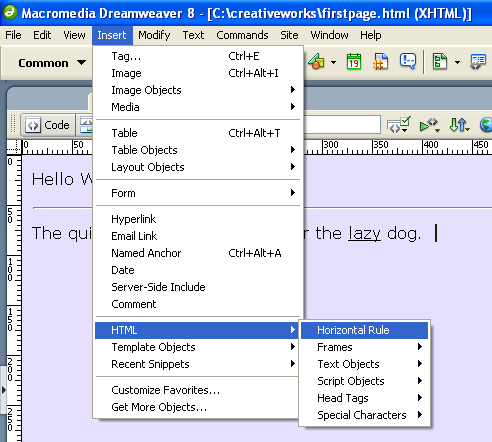
Lorem Ipsum TextContinuing from our last lesson, we are going to add another section of text below what we have on the page. So let's add another horizontal rule. This time use the menu as shown...
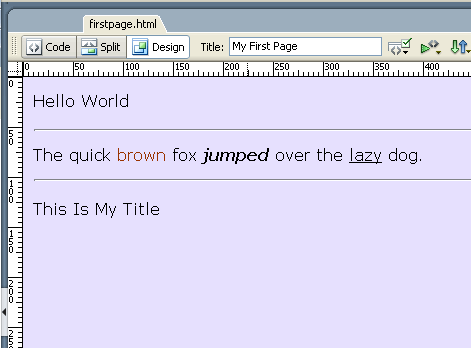
The new horizontal rule will now be selected. Press the right arrow key so that it is no longer selected and press Enter for a new line. Then type in a heading as shown below...
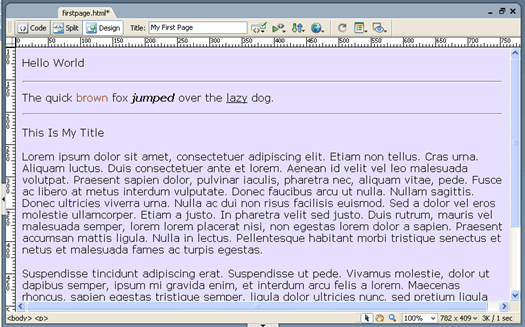
Lorem Ipsum text are filler text that web designers uses to provide a look-and-feel of real text without actually having to compose a story themselves. They are randomly generated letters that are statistically choosen to make it look like a language. Generate two paragraphs from the Lorem Ipsum Generator and copied and pasted it to Dreamweaver's Design view as shown.
If you quickly look at the code view, you will see that paragraphs are marked off by the <p> and </p> tags. Switch back to the design view. Centering the TitleThe <center> text is also deprecated. So how do we center text? To center this title heading on this page, we do...
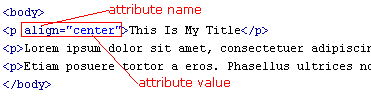
And the code you get is ...
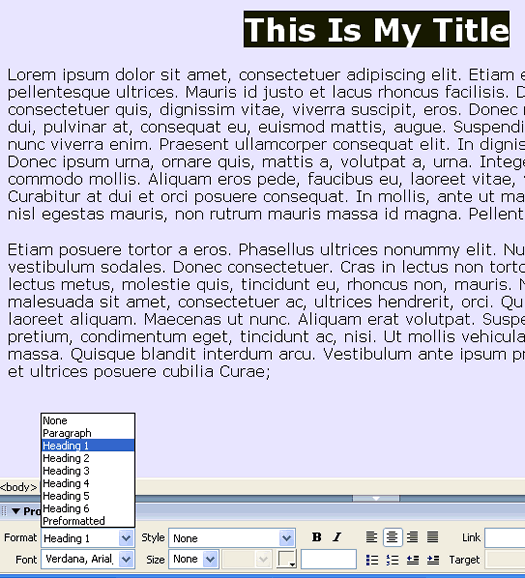
This time, Dreamweaver didn't give us a CSS rule. Instead it added the align attribute to the paragraph tag. HeadingsNormally, the heading title should be a bit larger than the other text on the page. Let's make it so. That is exactly what the heading tags are for. There are six possible heading tags for you to choose from: <h1>, <h2>, <h3>, <h4>, <h5>, <h6>. <h1> is the top-level heading. It will render the font the largest. <h2> is the next subheading with a smaller size font. <h3> is a sub-sub heading. Etc. In the design view, set our heading to heading 1.
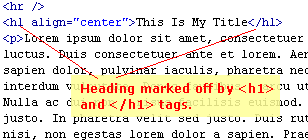
and see that our <p> tag has become the <h1> tag...
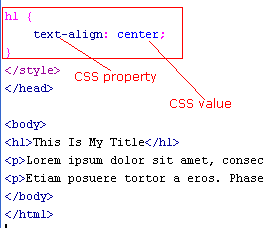
First CSSInstead of using an attribute (as in the above) to center our tag, some would argue that it is better to use CSS (Cascading Style Sheet) instead. To do this, remove the attribute and add the following CSS rule for our <h1> element ...
The two code snippets seen above are equivalent. Note that attributes uses an equal sign (=) to separate the name and value; whereas CSS uses the colon (:) to separate the property and value. The attribute name does not need to be the same as the CSS property. For example, the attribute name was "align". The corresponding CSS property is "text-align". Similarly, the attribute values need not be the same as the CSS values. It is often hard for beginner to remember all the properties and values and attributes. This is where Dreamweaver's code-hinting comes in handy. The code hints works for attributes just as well as for CSS. Just press Ctrl-Space at the location where you are about to type something, and Dreamweaver will help you out. In the next lesson, you will learn to create links.
|
 |
 |
| Roadmap | Lessons | Tutorials | Videos | Books | Links | About |
|
|