The Horizontal Rule
Continuing from the last lesson, do File -> Open to open up firstpage.html in the design view to refresh your memory as to what the page looks like...
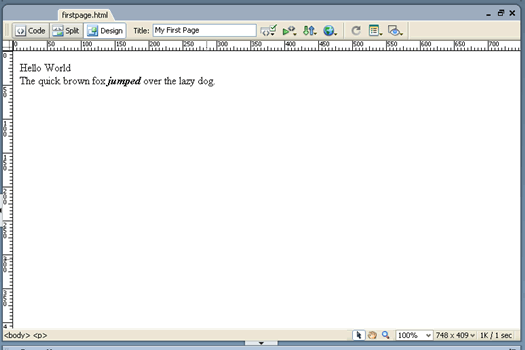
As a quick quiz, what was the tag that caused the word jumped to be bolded? To be italicized? What was the tag that caused the second sentence to be in a new line?
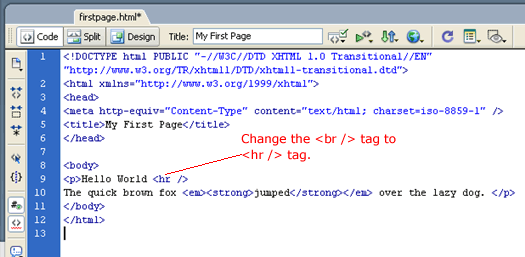
Switch to the code view now to see if you got the answers correct. It was indeed the <br /> tag that caused the second sentence to be on a new line. Now change the <br /> tag to the <hr /> horizontal rule tag as shown below. And why does these two tags end in />?
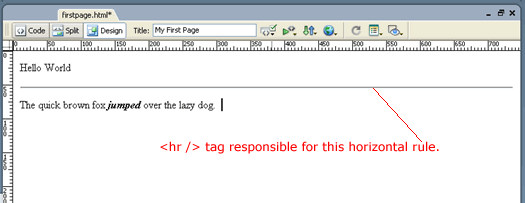
Switch to the design view to see what effect the <hr /> tag had...
Changing the Background Color
Let's change the background color of the page by right-clicking and selecting Page Properties
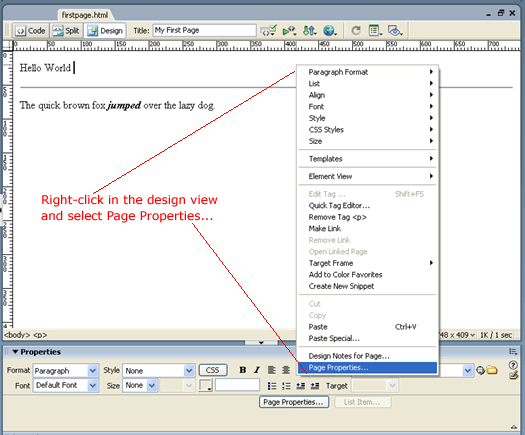
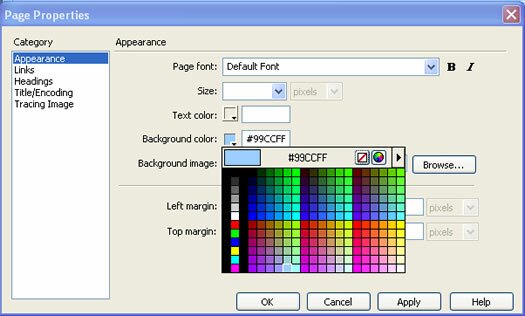
In the Page Properties dialog, set the background color to #99CCFF by picking the square indicated and click OK.
Go to the code view and see what Dreamweaver has added.
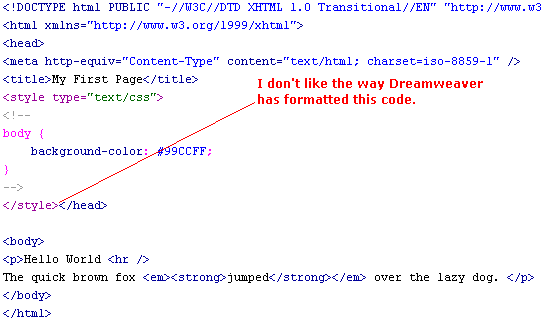
There is no harm in reformatting it so that the </head> tag is on its own line. And that is what I do...
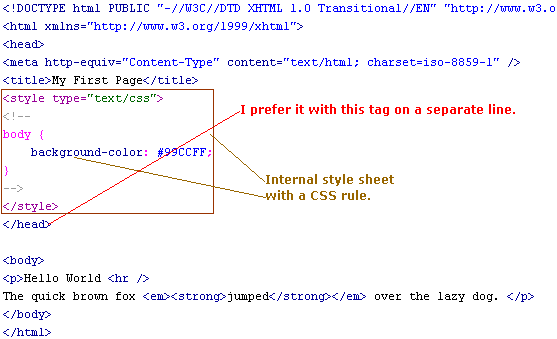
Dreamweaver has added an internal style sheet, or internal styles indicated by the <style> and </style> tags.
(Don't worry about the gray <!-- and --> just yet. They are HTML comment tags to hide these code from older browsers who don't understand style sheets. In fact, I am going to remove those, because they are irrelevant since all modern browser will understand style sheets now-a-days.)
Inside this style sheet is an CSS (Cascading Style Sheet) rule. A CSS rule consists of the selector, the property, and the value.

This rule tells the browser ...
"for everything that is inside the <body> tag, please set their background color to the hexidecimal color of #99CCFF"
Because this rule is inside an internal style sheet, this rule only applies to this one page, and not to every page of our site.
And when the browser carries out this order, you get...

This color is a bit bright and would not be a color that I would use in a real design. However, I picked this color in order to bring about a point.
In our CSS rule, change #99CCFF to #9cf ...
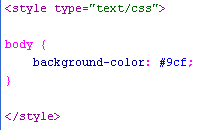
And you get the same bright color. Hence, #9cf this is a short-cut notation for #99CCFF when writing CSS colors. Also the upper and lower case letter both works. If the first two digits (the red component) are the same, and the middle two digits (the green color component) are the same, and the last two digits (the blue component) are the same, then you can use a single digit for each of the three pairs.
Adjust the background color
Okay, now that I have made the point about the shorthand notation, let dim the background color so that we don't hurt our eyes.
Go to the code view this time and delete the #9cf from our CSS rule.
At the location shown, press Ctrl-Space to bring up Dreamweaver's code-hinting.
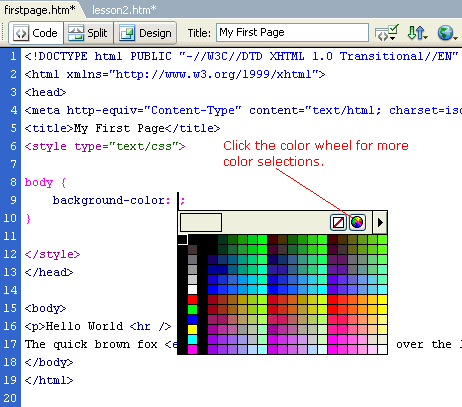
Click the color wheel and pick a color of your choosing.
In fact, if your color is one of the 17 colors listed here, then you can write it using the colorname instead. For example,
body {
background-color: blue;
}
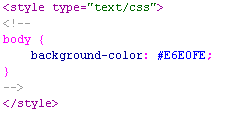
But the color that I happened to pick was a light gray of #E6E0FE;
Stylizing the Text
Going back to the design view, change the text color of the word "brown" to the color brown...
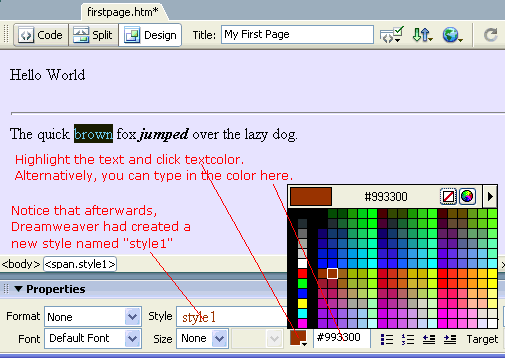
In the code view, we see below that Dreamweaver has a <span> tag around the word "brown".
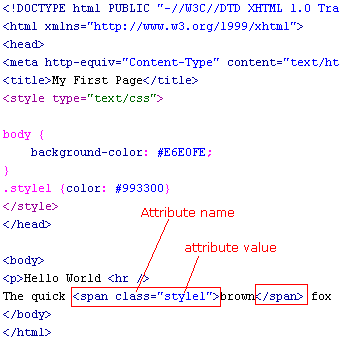
This <span> tag has an attribute of ...
class="style1"
The class is the attribute name and the style1 is the attribute value.
This tells that browser that the text in between the span tags are a little bit special. They are of a special class. The class that this item belongs in is named style1. style1 is an arbitrary name that was given by Dreamweaver. (It is not that descriptive of a name; so we will give if a better name latter.)
In addition, Dreamweaver has added another CSS rule.
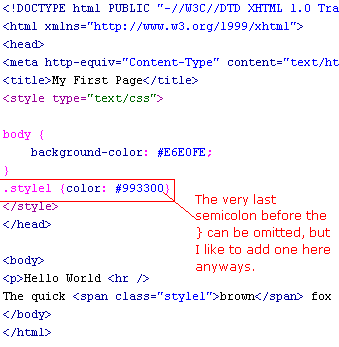
The content of our particular <span> tag will be styled by the style1 CSS rule.
Look at the CSS rule, this time the rule does not start out with the name of an element. Instead the rule starts with the classname preceded by a dot. The dot indicates to the browser that what is to follow is a classname. In plain English, the rule says ...
"For all elements with the class "style1", please style the color to #993300."
"Style1" is an arbitrary name that Dreamweaver has given us. It is best to give it our own more informative name such as "browntext".
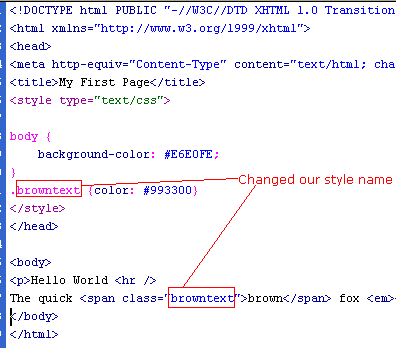
And see that it still works just the same when we preview it in our browser...

In the next lesson, you will learn the difference between span versus div.
|