|
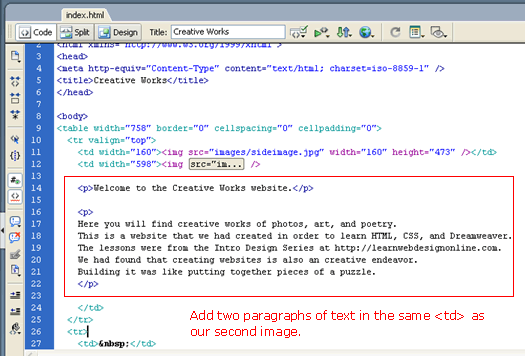
Code Collapse and Word WrapAs you might have noticed, the line containing the <img> tag for our title image is quite long, especially with the alt and title attributes added to it. This is a good time to learn about how to use Dreamweaver's 8 Code Collapse and Word Wrap features to deal with long lines. See tutorial here. Adding ContentOpen index.html in code view. In the same table cell as our title image, add in two paragraphs of text as shown...
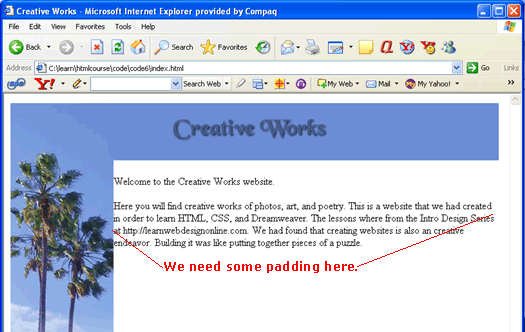
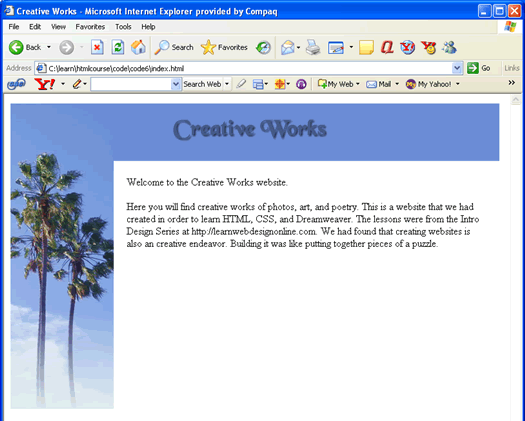
Previewing in the browser we see that we need some padding...
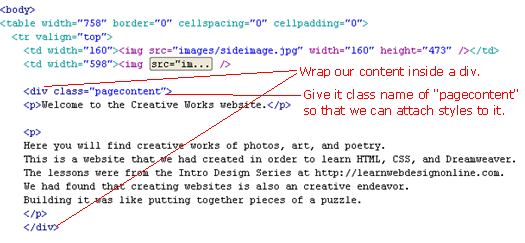
So we wrap our content inside a div and give it a class attribute of pagecontent...
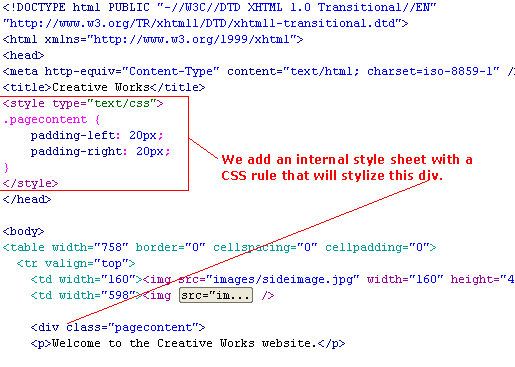
Now we can attach styles to that div by writing the following rule...
The rule essentially says to give the div 20 pixel of left and right padding. And the page looks much better...
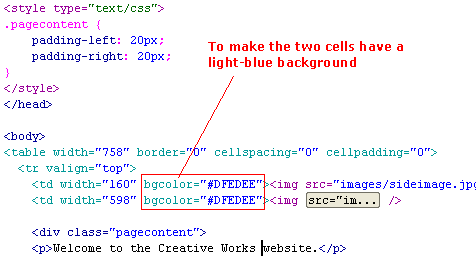
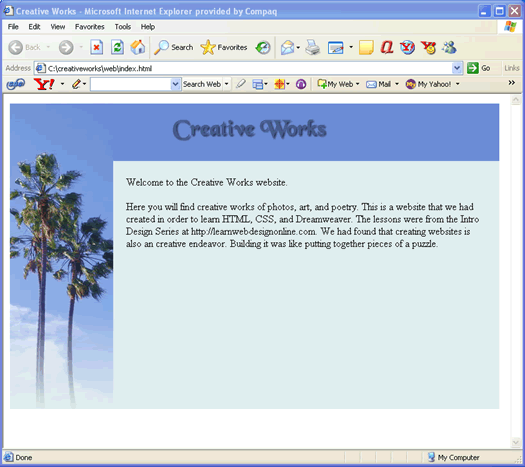
Except we need the table cell to have a light blue background as in the design comp. So add the bgcolor (background color) attribute to the <td>. Add it to both cells.
Now you have a basic web page ...
Download: code6.zip What's Next?As an exercise to review what you have learned in the previous lessons, try setting the background color of the page and changing the font. In the next set of lessons titled Introductory CSS, we will continue to build upon this page to add in a navigation bar and a footer and will eventually build out a four page site. Hope you have enjoyed these HTML and Dreamweaver Lessons.
|
 |
 |
| Roadmap | Lessons | Tutorials | Videos | Books | Links | About |
|
|