|
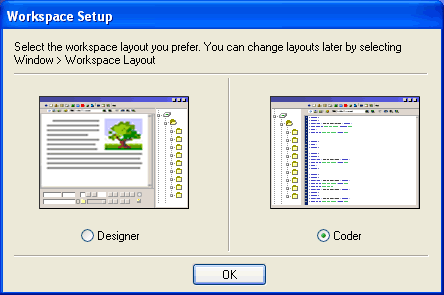
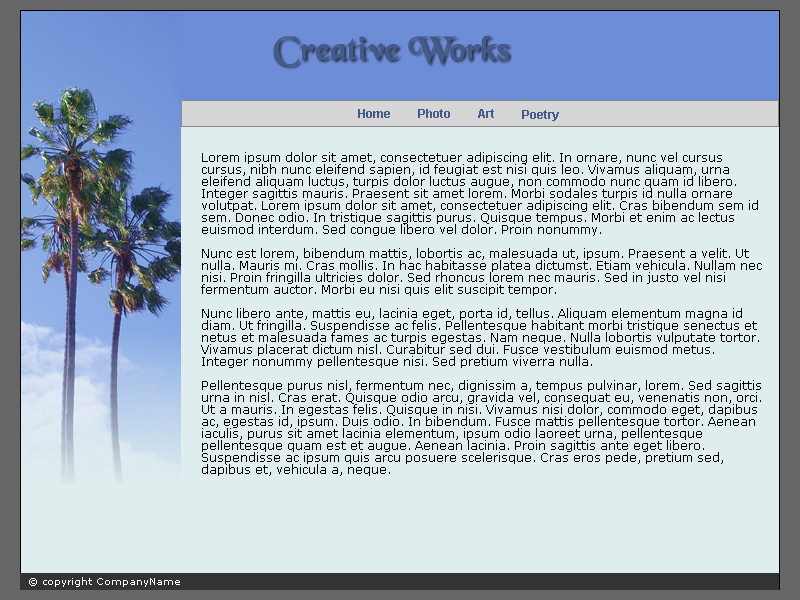
Starting DreamweaverThese lessons along with the screen shots has just been recently revised to use the latest Macromedia Dreamweaver 8 which was released in September 2005. Dreamweaver 8 is a major release and does contain many new features such as code collapse, word wrap, additional CSS support, zooming in design view, etc. However, if you choose not to upgrade, Dreamweaver MX version is acceptable for use in this course. In these lessons, we will create the Creative Works website from the design comp that we had created in the Fireworks lessons. You can download the creativeworks.png comp file by right-clicking on the link and selelct "Save Target As". But before we do, let's learn the fundamentals of Dreamweaver and HTML first. When you start up Dreamweaver for the first time after installing it, it might as you ...
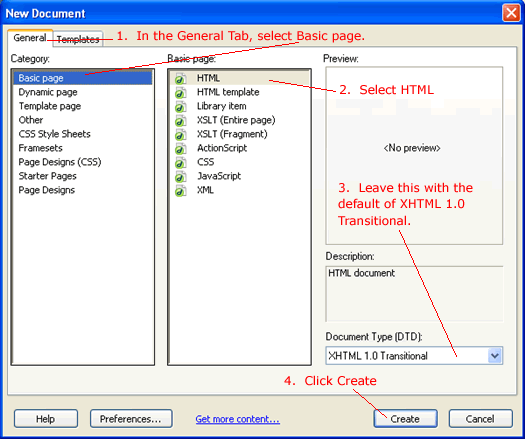
Since we will be learning HTML code and will be doing hand-coding as well as the design features of Dreamweaver, select Coder. In actuality, you can choose either and you will still have all the same functionality. Except that the panels will be laid out differently. That's all. If you had chosen Designer previously, you can switch to Coder by menu Window -> Workspace Lyout -> Coder so that you Dreamweaver will look somewhat like the screen shots in this course. New DocumentStart by creating a new HTML document in Dreamweaver with File -> New...
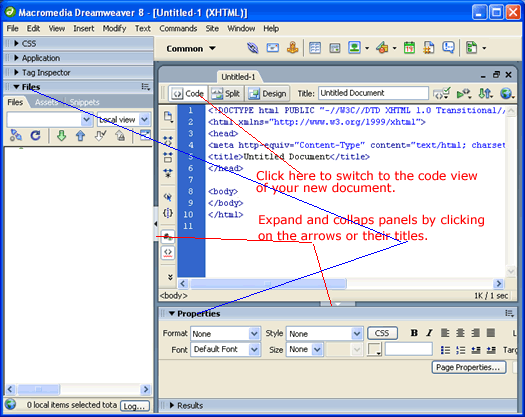
XHTML is the new standard. Think of XHTML 1.0 as the version of HTML markup that is after HTML 4.0. We won't be looking at the XHTML spec now (because the reading is too dry and technical). But just know that this link in W3C's website (W3 Consortium's website) is the ultimate reference point since they are the ones who defined XHMTL. After clicking Create in the above dialog, you will see that the development environment in Dreamweaver is very similar to that of Fireworks in that you have collapsable and tear-able panels.
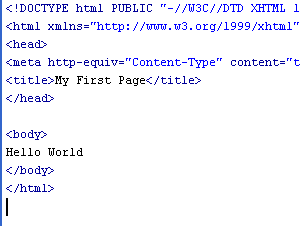
In Dreamweaver, there is an extra document bar with three buttons "code", "split", and "design" to enable you to switch between these three views. If you don't see this bar, select menu View -> Toolbar -> Document. Go to the code view now by pressing the code button now. Here you see the default HTML skeleton code that Dreamweaver has generated in your new document.
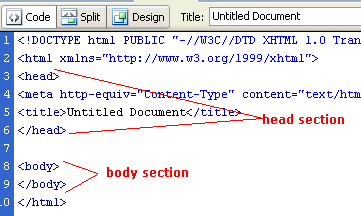
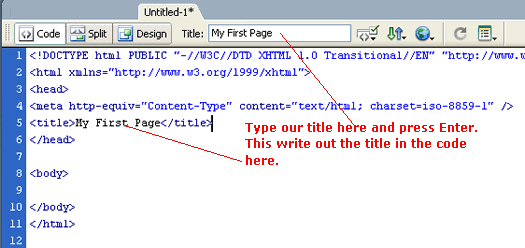
These are basically the code that you would write every time you create a new XHTML document. Dreamweaver is nice enough to write them for you. The things in angle brackets are tags. The very first line that has doctype in it. This basically indicates to the browser what version of HTML code we are using. The <html> tag indicates the start of the HTML document. And the </html> tag indicates the end of the document. Although this is really an XHMTL document, we are going to use the term HTML loosely. Note that tags often comes in pairs: <html> is the start tag, and </html> is the end tag. You can nest additional tags inside tags. For example, inside the body of the <html> tag are the <head> tags and the <body> tags as indicated. You can say that an HTML document has two sections: a head section and a body section as shown in the above diagram. The head section contains things like the title of you web page for example. Give our page a title by adding a title of My First Page by doing as shown.
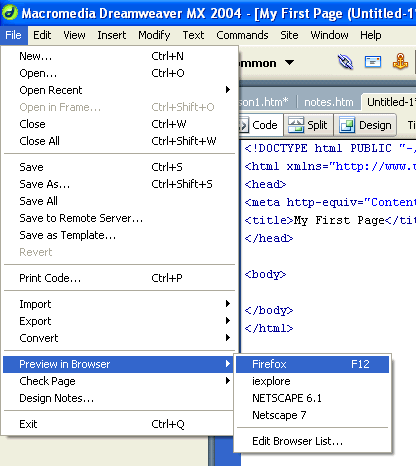
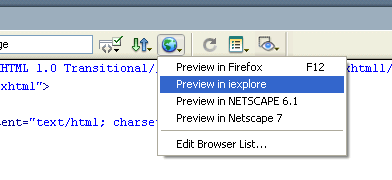
We will now test our page in our browser to see what it looks like. Dreamweaver can launch your browser for you and load the page if you do menu Menu -> Preview In Browser.
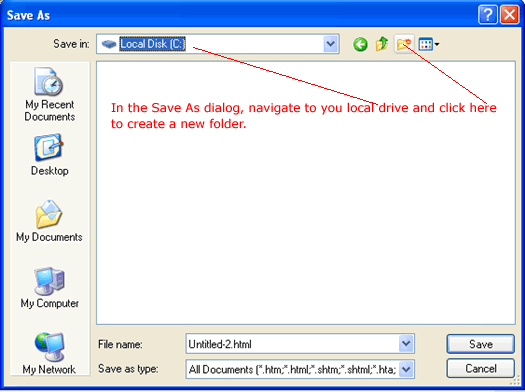
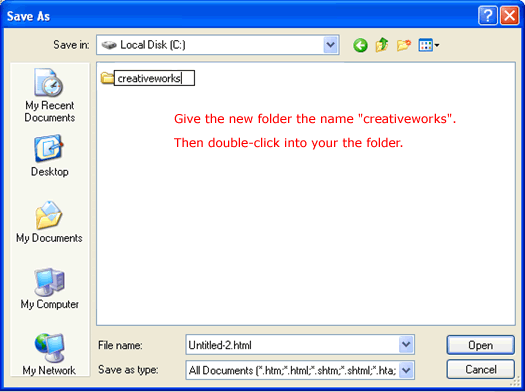
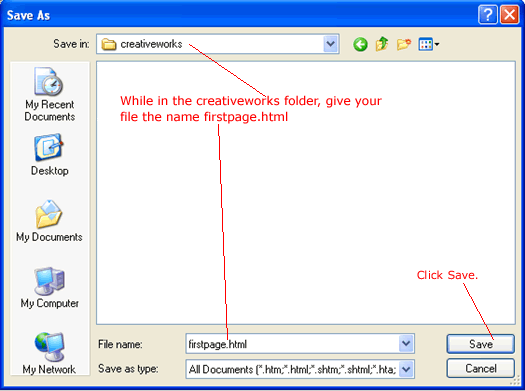
If your menu does not have any browsers listed, you can select Edit Browser List in menu above to setup Dreamweaver to become aware of the browsers that you have on your computer. Dreamweaver needs to have a saved document in order to preview, so it might ask if you want to save the changes made to the current document. Say "yes" and save this file as firstpage.html in a new folder called creativeworks by following these steps...
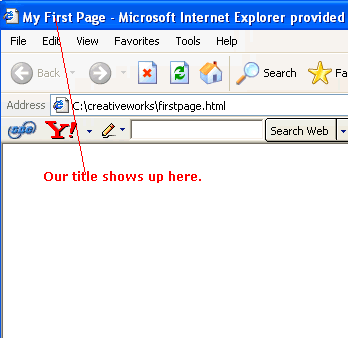
After Dreamweaver launches your page, you should see the following come up. Notice our title in the window header.
Right now, it doesn't matter what browser you use. However, in the Intro CSS course, you will be using both Internet Explorer and Firefox. So you might just want to get those two browsers to start with. If you do not have Firefox, it is a free download. Dreamweaver has made this testing task easy for you by giving you a shortcut key of F12 and a toolbar button as shown.
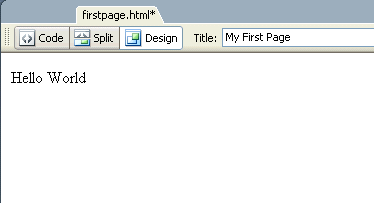
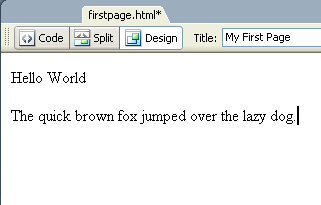
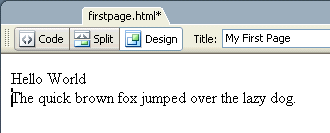
So there is no excuse for not testing frequently. Adding ContentSo far our page is empty. We want to add some content to our page. Click the Design button to go to the design view and start typing the following.
Switch back to the code view. See how your content is added within the <body> tag.
The body tag is what contains the content of our web page. Go back to the design view to add another paragraph.
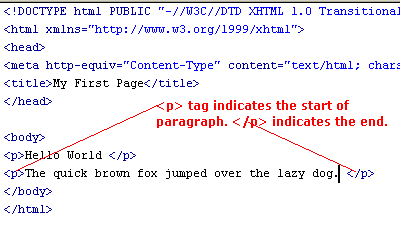
Switch back to code. See how the <p> tag is used to represent paragraph.
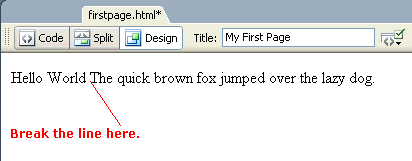
There are two tags. One <p> tag (known as the start tag) that indicates the start of the paragraph and one </p>(known as the end tag) that indicates the end of the paragraph. The end tag is the one with a slash right after the first angle bracket. The text "The quick brown fox jumped over the lazy dog." in between the two tag is known as the body of the tag, or the content of the tag. What if you don't want two paragraphs, but two lines by themselves? Go back to the design view and remove the paragraphs so that you have only one line.
Now you want to break the line at the location shown. Just do Ctrl-Enter at that location. (Ctrl-Enter is equivalent to the menu Insert -> HTML -> Special Characters -> Line Break. This menu item is buried so deep that virtually eveyone uses Ctrl-Enter instead.)
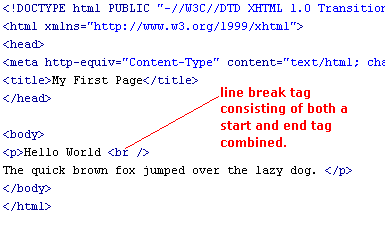
And see that the line break tag <br /> was generated...
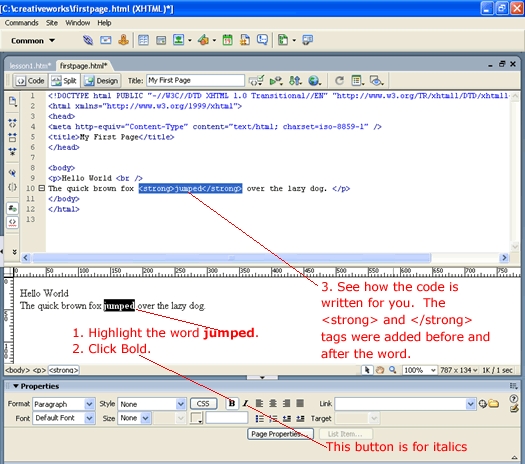
The line break tag looks a little bit different from the other tags. What is it? It has a slash / just before the second angle bracket. If you look around in the above code, there is not other tag that looks like this. All tags comes in pair: a start tag plus an end tag. For example, the paragraph tags: <p> and </p>. But where is the end tag for the line break tag? The line break tag does not have content in its body and therefore its start and end tag can be combined into this notation: <br /> Round-Trip HTMLAre you tired of switching back and forth betwween code and design view? Try the split view by clicking the Split button.
In the lower design view, bold the word "jump" as shown above and see how the change is immediately reflected in both views. This is Dreamweaver's famous round-trip HTML at work. You make changes in any of the views and it is automatically reflected in the other views. And as you format the code the way you like it, Dreamweaver tries its best to not alter your code format as it performs its update your code or generate new ones. In my opinion, Dreamweaver does this better than any other HTML editor that I have seen. In addition to bolding the word "jump" also click the italics button right next to the bold. See that Dreamweaver writes out the following code... <em><strong>jumped</strong></em> Now you just learned the tags for bolding text and italics. They are <strong> and <em> respectively. In the old days, people used <b> and <i>. But for semantics reasons, <strong> and <em> are now preferred. Note how they properly nest one another. One of the XHTML requirements is proper nesting of tags. Hence it would be incorrect to do ... <em><strong>jumped</em></strong> Good time to save your document. In then next lesson, you will learn about XHTML syntax.
|
 |
 |
| Roadmap | Lessons | Tutorials | Videos | Books | Links | About |
|
|