ZenCart lets you create what are known as "EZ-Pages" via the admin control panel.
For this example, we'll create our own "about us" page. And have a link to this EZ page from our sidebox.
1. Go to "Tools -> EZ-Pages".
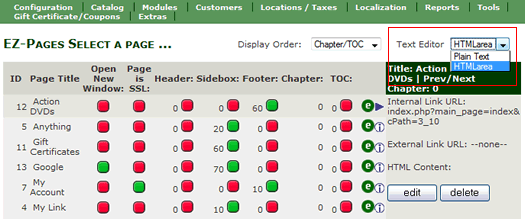
2. For the Text Editor. You have a choice between Plain Text and HTML Area. Select HTML Area for this example.
2. Click "New File" button at the bottom of the page.
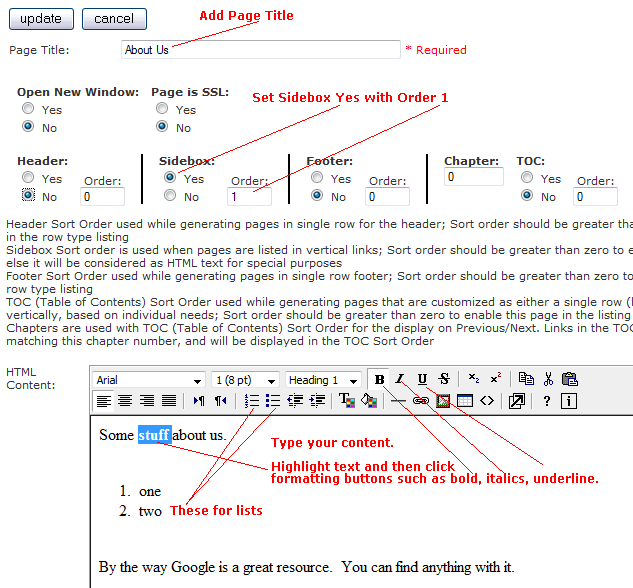
3. Type in Page Title. We will set the "Sidebox" option to "Yes", while leaving all the other options to "No". This will tell ZenCart to link to this EZPage in a sidebox. Make sure you set the Order field for the sidebox to "1". Otherwise, it will not work. Then add in some content and formatting for that page as shown...
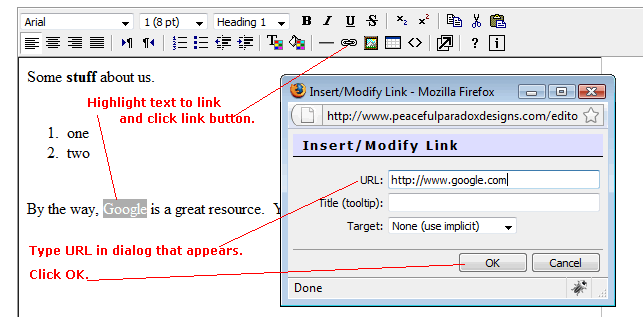
You can even add links by ...
4. Leave "Internal Link URL" and "External Link URL" blank.
5. Click "Insert" button.
6. An EZ-Page has just been created. Note the ID of this page ...
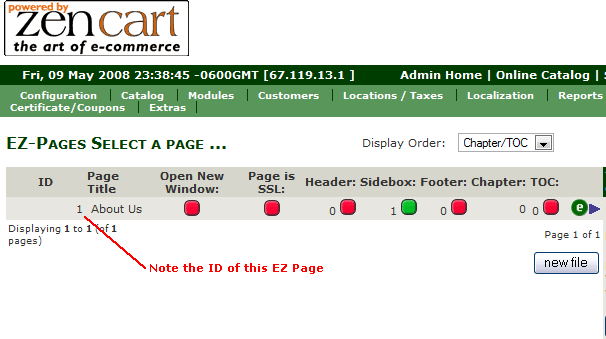
7. Because this EZ-Page is accessed by putting that ID in the URL as in ...
http://www.example.com/index.php?main_page=page&id=1
where in this example "1" is the ID of the EZ Page.
And this is what are EZPage looks like in the browser when you point it to the URL for your EZPage ...
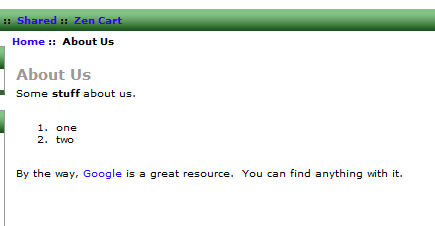
8. Note that you can also go back to the EZ Page and edit the content. If you are familiar with HTML, you can set the editor to Plain Text in step 2 and put in HTML code...
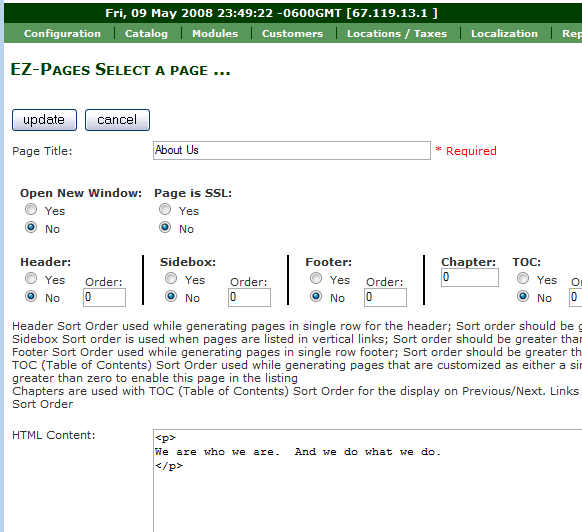
And here is what our EZ-Page looks like when we put the above URL in our browser ...

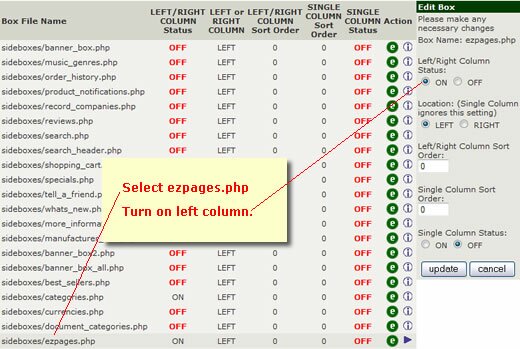
9. Now we want to add a left sidebox with a link to this EZPage. In "Tools -> Layout Box Controller", find sideboxes/ezpages.php and edit it to turn on left column as shown...
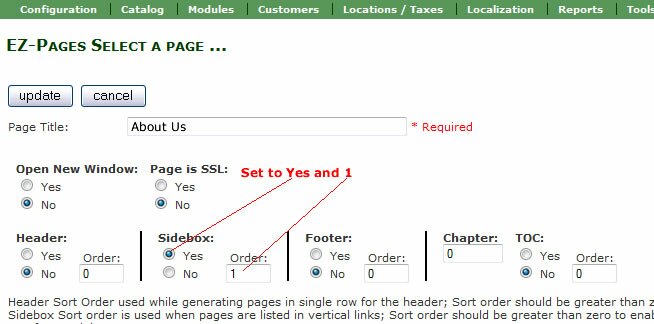
10. Then in the "Tool -> EZ Pages" settings, set Yes to the sidebox and set sort order to 1 as in ...
Now you should see a left sidebox with the link to our newly created "About Us" page...
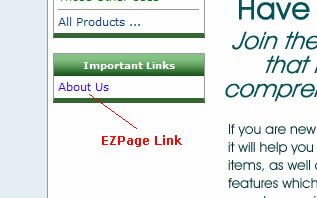
10. Suppose you want to add a link to EZPage in other places within your page templates besides the sidebox, footer, etc. In the next tutorial, we'll show you how to add this EZPage link to other places in your page template.