|
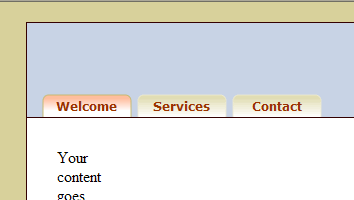
Table Tab Menu: Remove Bottom Border of Selected TabThis was what we have in the previous lesson.
We want to remove the bottom border of the selected tab so that the tab and page looks connected. The problem is that the black horizontal border is created by the top-border of the white content area.
We have to delete that border as shown in the code above.
But now we need to add borders under the other tabs as well as the remainder of the header. Essentially, we have to make our menu table span the full 758px width of the header and control the on and off of the bottom borders of the table cells. Change the table structure as shown below...
Use an empty td as a left spacer to push the menu away from the left edge. Doing some math, we figure that we also need a td of width 463 on the right to have all the table cell widths add up to 758px. With three tabs at 90px and two separators at 5px and then there is the 15px spacer cell on the left, we got a sum of 295px -- which means that we just need 463px to add up to 758px.
The look is still the same.
But at least we had prepared the structure for the turning on of the borders in the table cell. We set a bottom-border for each of the tds in the tabmenu table...
And we get this in Internet Explorer...
It turns out that Internet Explorer will not put borders on empty cells. Hence we have to add a non-breaking space in the following empty cells.
And now it is good in Internet Explorer...
But when we look at it in Firefox, we don't see the border...
It turns out the the tab menu tab is being push down too low so that the border is below the masthead area where it can not be seen. So we decrease the top margin of the tabmenu table by 1px...
Now both Firefox and Internet Explorer looks the same.
The last thing we need to do is to remove the bottom border of the table cell that contains the selected tab. Try adding this rule...
And we get...
Nope, that is not what we want. Instead of making the border zero; we should keep the border, but make it white. Do the following ...
Now it is good. See that the hover effect works nicely too. In the next lesson, we will duplicate our code into three pages and make the destination links of the tab work. Next Lesson:
|
 |
 |
| Roadmap | Lessons | Tutorials | Videos | Books | Links | About |
|
|