|
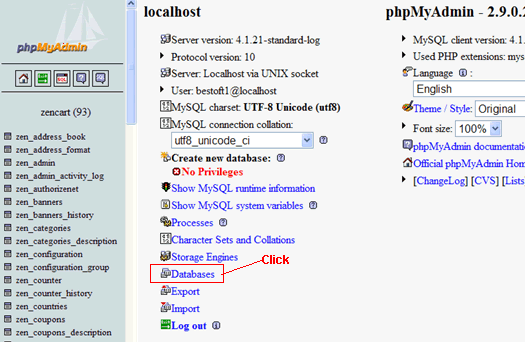
You ZenCart eCommerce store consists of server side PHP files that makes your store work and the MySQL database that contains all your product, orders, customers, and settings data. You should have an initial backup of both. Then as you get more customers and order and add new products, you need to continue to backup your MySQL database on a regular basis. Backing Up PHP filesTo backup the PHP source files, FTP to your webhosting server and download all the files and all the subdirectories of your installed ZenCart folder off to a safe locations. Some webhosts may have other methods of backup. For Hostmonster, you can click the "Backup" feature icon in your control panel and click the link "Download a Home Directory Backup". Backing Up MySQL DatabaseTo backup the MySQL databse, you will have to use the utilities provided by your webhost. For Hostmonster, you can click the "Backup" feature icon in your control panel and click the link to the zencart database under "Download a MySQL Database Backup". Many webhost will have a utility called phpMyAdmin that you can use to backkup the database. As an example, here is how to backup the database using phpMyAdmin on HostMonster. 1. Log into your hosting account's control panel by going to hostmonster.com, typing in your domain and password. 2. Click to go into the Webhosting Control Panel. 3. Click on the item MySQL Databases. 4. Scroll down until you find an icon showing phpMyAdmin and click it. 5. Click "Databases"...
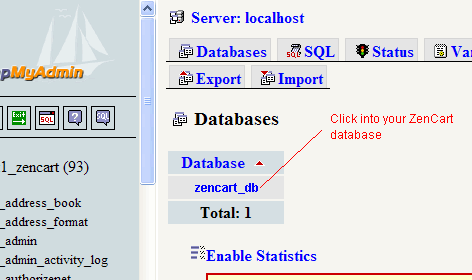
6. This will show you a list of databases on your host -- perhaps there is only one. Click on your ZenCart database.
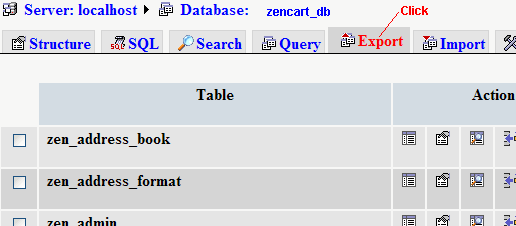
7. Click the Export tab.
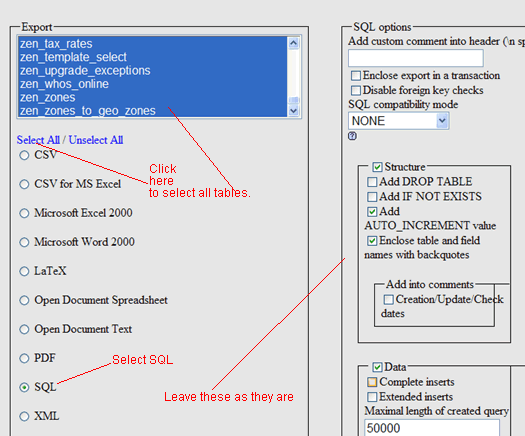
8. Select all tables for export...
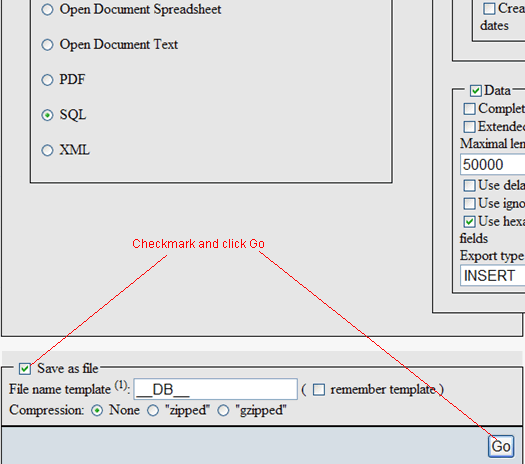
9. Checkmark Save As File and click Go.
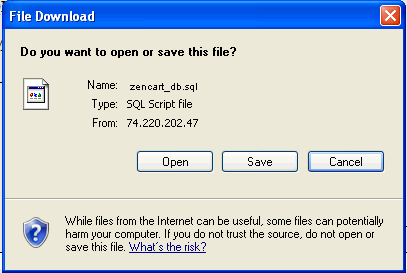
10. Your browser will prompt you to save an SQL file.
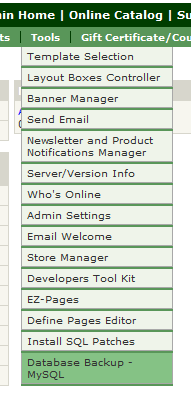
Make note of the filename and save it to a save place. You can rename the filename (such a adding a date stamp) if you like. This file contains a sequence of SQL commands that will rebuild your database should anything happen to it. Using ZenCart backup plugin.Alternatively, you can try installing and using the mysql backup plugin. It doesn't work for all web hosts, but when it does, it makes backup a snap. 1. Once the plugin is installed, you can backup the database by logging into the admin panel -> Tools -> Database Backup MySQL.
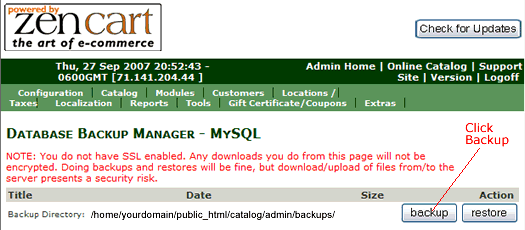
2. Click the "Backup" button
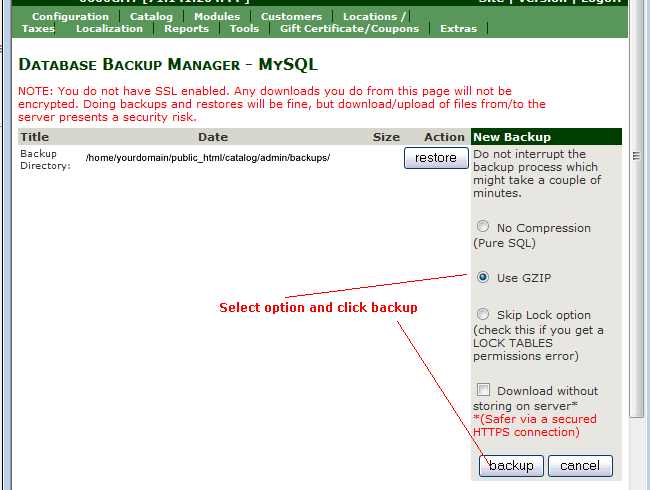
Note that the backup file will be written to the file server in the backup directory indicated. Typically, in public_html/catalog/admin/backups. So if you want to pull the backup file down via FTP, you can get at it. 3. Select a compression option and click Backup. Note, if your webhost does not have GZIP available, you will not see that option. In that case, just select No Compression.
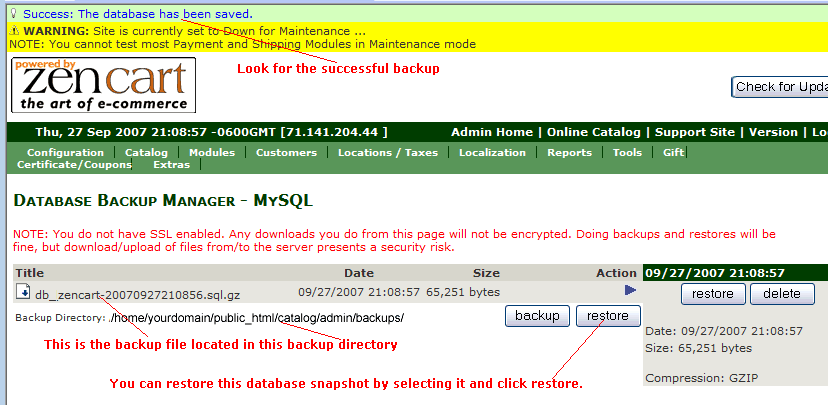
4. Look for a successful backup...
See that in the above picture, we have a backup file db_zencart-20070927210856.sql.gz created on 9/27/2007 at 21:08:57 located at /home/yourdomain/public_html/catalog/admin/backups/ directory on your webhost. Just select that file and click the restore button if you ever need to restore that particular backup. Next Lesson:
|
 |
 |
| Roadmap | Lessons | Tutorials | Videos | Books | Links | About |
|
|