|
Vertical Menu with Hover Effect using CSSWe will be constructing this vertical menu with HTML / CSS...
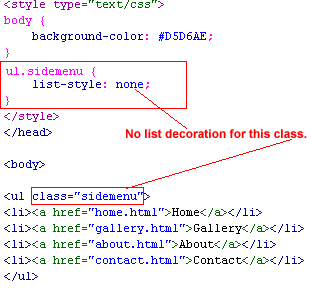
This tutorial assume basic HTML/CSS familiarity that is covered in the Intro HTML and Intro CSS course. Step 1: Setup a new HTML file with a tan background color as shown.
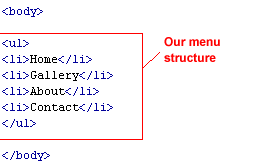
Step 2: Create a HTML unordered-list structure with list elements that will become our menu.
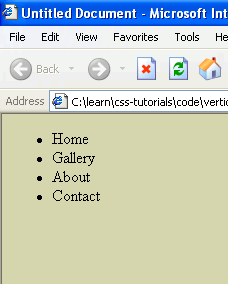
And this is what we have...
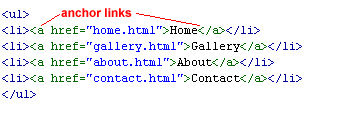
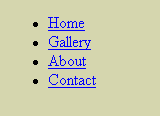
Step 3: Because we want our menu buttons to be clickable, we make them anchor links.
Step 4: To remove the bullets from our unordered list, we give our unordered list a class name called sidemenu and stylize it with list-style: none as shown...
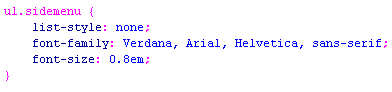
Step 5: We want our list text to be of san-serif font (such as Verdana or Arial) for a cleaner uncluttered look. We add the font-family property as shown below. And we make the font-size 80% of normal.
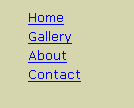
Now we have ...
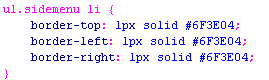
Step 6: Add borders to our individual list elements with the following rule. This rule says to give a one pixel wide solid border of color #6F3E04 to <li> elements found within the <ul> element of class sidemenu.
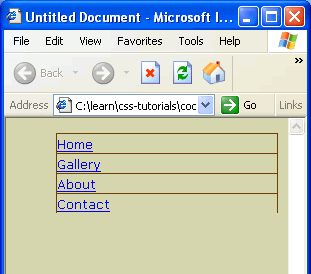
Note that we specify a top, left, and right borders; but we do not specify a bottom border. That is because we don't want both a top and bottom border for the <li> elements. Otherwise adjacent elements will have double borders.
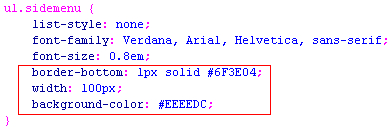
Step 7: To close the menu, we add a bottom border to the <ul> element. Also we need to fix the width of the <ul> element to be 100px and give our menu a lighter background color of #EEEEDC. All this is done by the addition of the following properties.
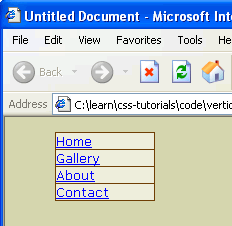
Now our menu is starting to look like a menu.
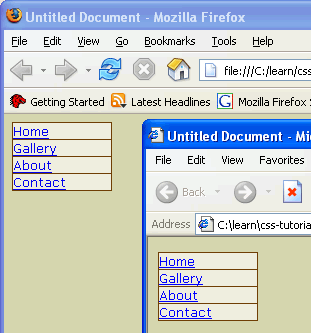
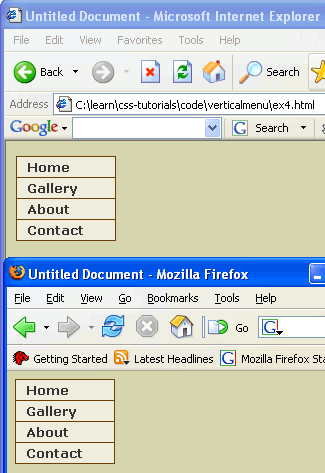
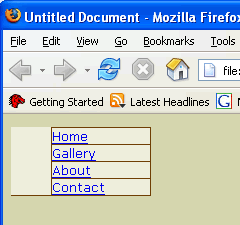
At least in Internet Explorer that is. Take a look at it in Firefox, and this is what you see...
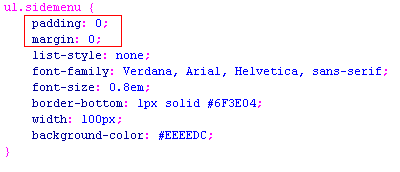
That is because different browsers have different default paddings and margins on elements. Step 8: Hence, we will explicitly zero out the padding and margin on our <ul> element...
and get it to look correct on both browsers...
Step 9: The underlining of the links is adding clutter. Get rid of the underline from the links by setting the text-decoration of the <a> element to the value none as shown here...
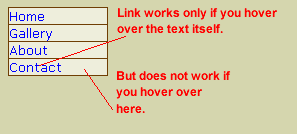
The underline is gone. But they are still links as evidence by the hand icon when you hover your mouse over the text. See live code here. The problem is that if you hover over the non-text portion of the menu, the hand icon disappears -- making the non-text portion of the menu non-clickable.
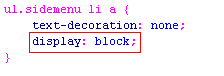
Step 10: We fix this by setting the <a> element to display: block.
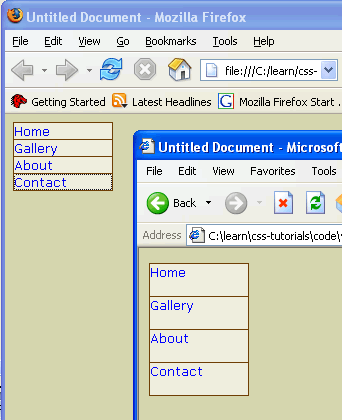
This works in Firefox but not in Internet Explorer.
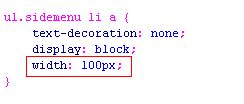
Step 11: It turns out that Internet Explorer likes to have a width in order for display: block to take effect. For the time being, we set this width to be 100px -- the same as the width that we had set for the <ul> element. See live code here .
Step 12: Next step is to stylize the links to get rid of that default blue color. And apply some padding as shown in the below rule.
And here is the results...
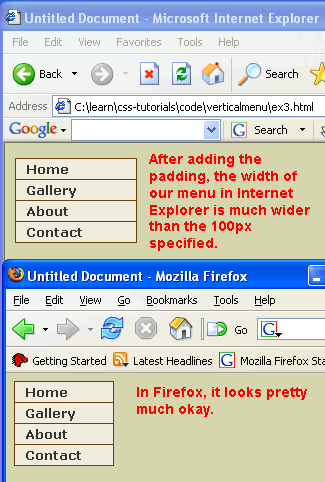
View the live code here. Step 13: If you take a look at the menu in both Firefox and Internet Explorer 6.0, you will notice that after we have added the padding, the width of the menu in Explorer is no longer correct. It has become too width.
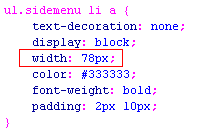
Step 14: To fix this, we have to set the width of the <a> links to be 78px. Why 78px? We have to remember that the definition of width is the content width of an element -- that is the width excluding the margin, padding, and borders. Our <ul> is 100px. Inside the <ul> is our <li> which has an one pixel left border and a one pixel right border. So the content width of our <li> is 98px. The <a> that is inside our <li> has a left padding of 10px and a right padding of 10px. Excluding the padding, the content width of the <a> element is 78px.
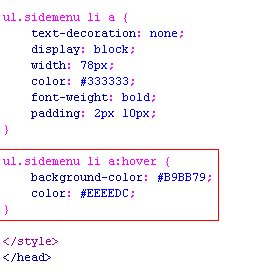
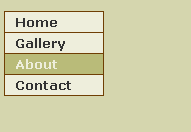
Step 15: And now it looks perfect in both Internet Explorer and Firefox. Step 16: Next we add a hover effect to the menu by adding the following rule. As the mouse hovers over the menu, the text color changes to #EEEEDC and the background color changes to #B9BB79.
Step 17: Test this in Firefox and Internet Explorer and see that it works as expected. The menu is complete, you can get the full code by viewing the live code and doing a view-source in your browser.
|

|
 |
| Roadmap | Lessons | Tutorials | Videos | Books | Links | About |
|
|
|
 View the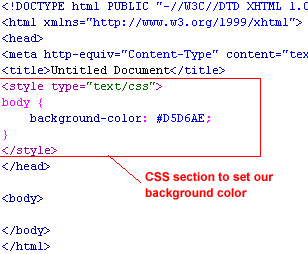
 as seen in Internet Explorer 6.0.
 as seen in Firefox.