|
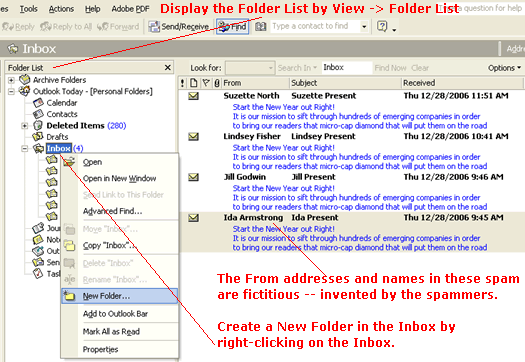
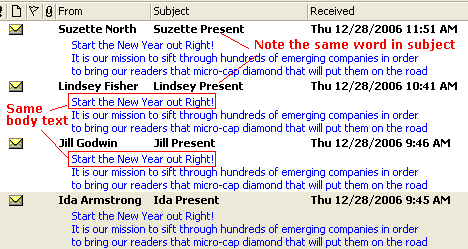
Filtering Spam Using Microsoft OutlookIn this tutorial, we are going to learn how to use Microsoft Outlook's Rule Wizard to filter spam emails. This only work if your have a set of spam emails that fits a certain "pattern". For example, below you see that I got four spam email of the same "pattern" in a single morning. And it is likely that I'll get more of the same spam in the following days and weeks. Yes, spam is getting pretty bad.
1. First you have to create a new folder in your Inbox where your spam emails will be moved to. I would create a folder called "Spam". 2. Take a note of the pattern of the spam email.
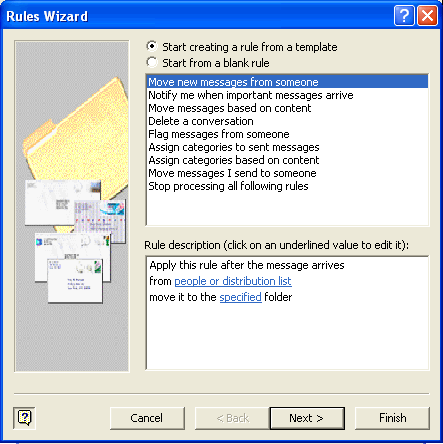
3. Then go to Tools -> Rule Wizard and click the New button to create a new rule. 4. Select " Start creating a rule from a template". Highlight "Move new messages from someone".
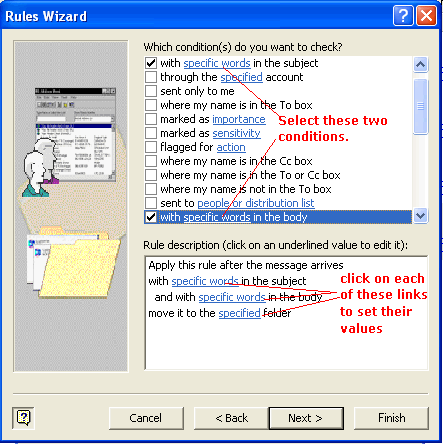
Click Next. 5. We want to filter the email based on the words in the subject and in the body. Checkmark the two conditions shown.
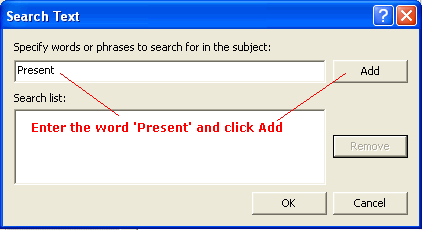
6. Click on the first link in the rule description and set its value to "Present".
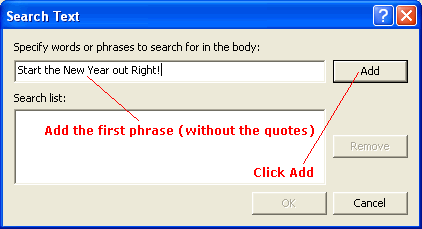
7. Set the value of the second link to the phrase as shown...
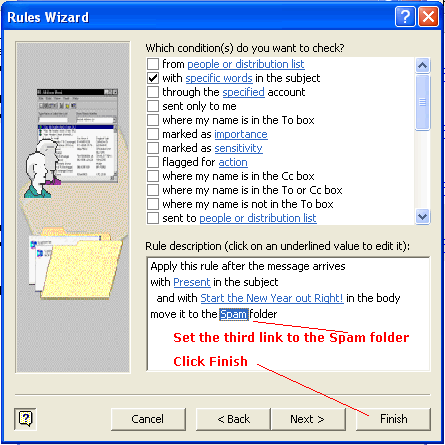
8. Similarly, set the third link to the "Spam" folder. So that your rule look like below.
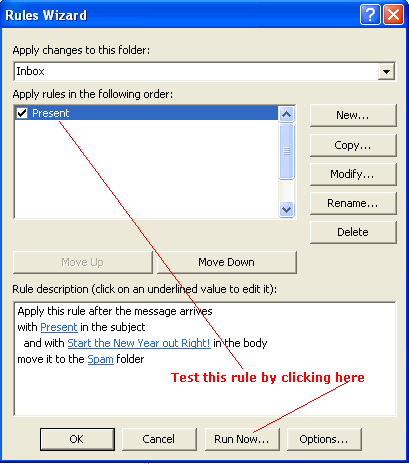
9. Click Finish and you see that you got a new rule called "Present". If you don't like the name that the Wizard came up with, you can click the Rename button in the below dialog.
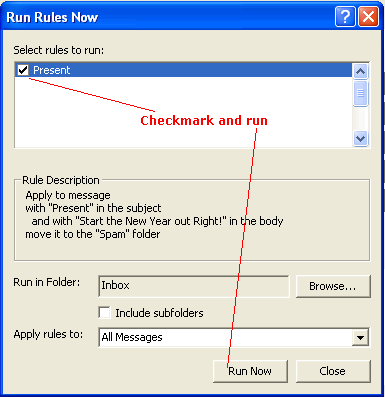
10. Test it out by clicking the Run Now button.
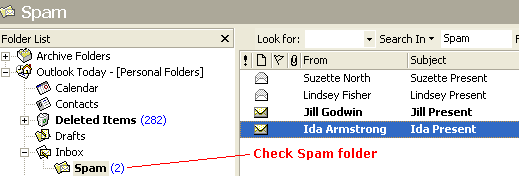
11. All you Inbox spam should now be moved to your spam folder. You can confirm by going to your spam folder and seeing that the email have indeed been moved there.
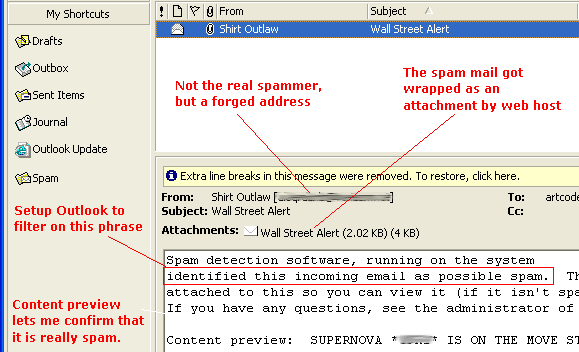
The next time Outlook retrieves email, the rule will run and the mail fitting the rule pattern will automatically be moved. You should review and delete your emails in the spam folder every so often. Spam Assassin on Your Web HostMany web hosts will have the ability for you to turn on spam filtering with software such as Spam Assassin. Depending on how it is setup, it could mark suspected spam in a certain way, such as adding the word spam in the subject line, etc. Now when that marked email comes into your inbox, you can setup a Outlook filter rule to move them to the spam folder. In the following picture, the spam was wrapped up into an attachment by the webhost and marked as indicated in the body of the message.
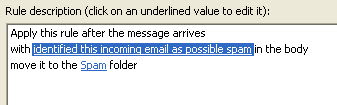
So all I have to do is to set up the following rule
and these types of email will get automatically moved to my spam folder.
|
 |
 |
| Roadmap | Lessons | Tutorials | Videos | Books | Links | About |
|
|