|
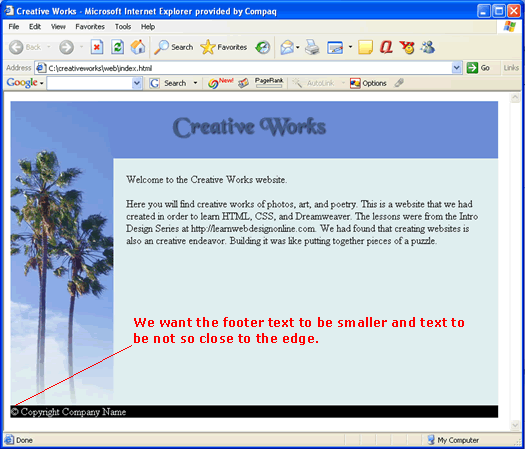
Style TextLast lesson, we put together a footer with white text on black background...
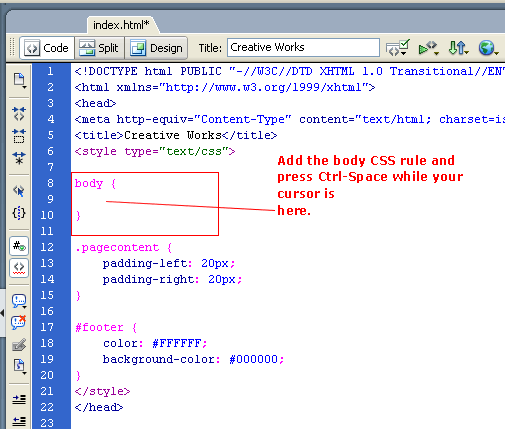
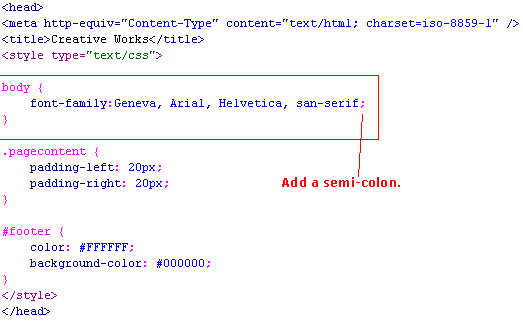
Now we want to stylize the text. Since we want a consistent typeface throughout the entire site, we will apply the text style to the whole page. In order words, we want to apply the styles to the <body> tag. Since we learned how to use the Page Properties dialog to stylize the font to Verdana in the HTML/Dreamweaver lessons, you will learn how to hand code the font style to Geneva here. Geneva is another san-serif font type. Open index.html in code view and start adding the body CSS style rule as shown...
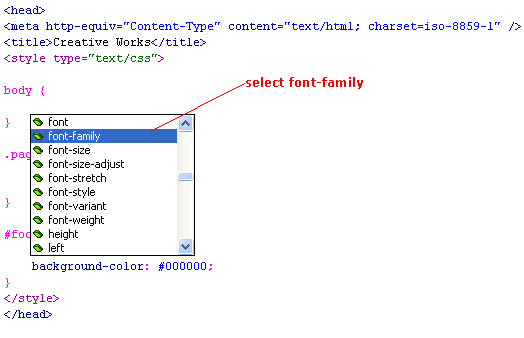
And you will see Dreamweaver's code assist comes up giving you all the possible CSS properties...
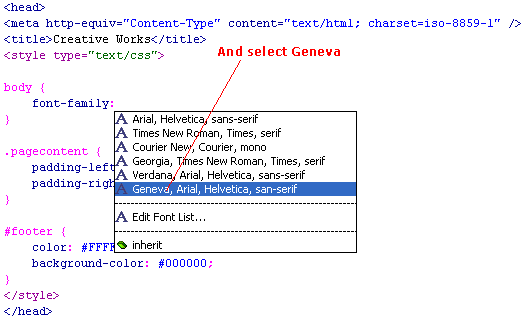
Now Dreamweaver is giving you some possible values for the font-family property.
You should now have the below CSS rule. Don't forget to add the semi-colon...
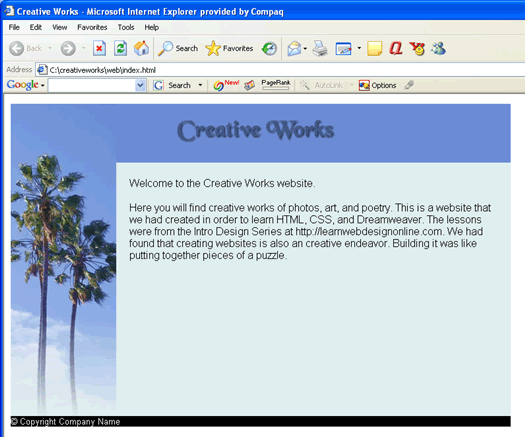
For the value of our font-family property, we have serveral fonts listed: Geneva, Arial, Helvetica, san-serif. This means that if the user's computer has the Verdana font installed, the browser will render the text in that font. If not, the browser will try Arial font, and then try Helvetica. If all else fails, the browser will render it in a generic sans-serif font. Testing in browser, we see that our font had changed to Geneva...
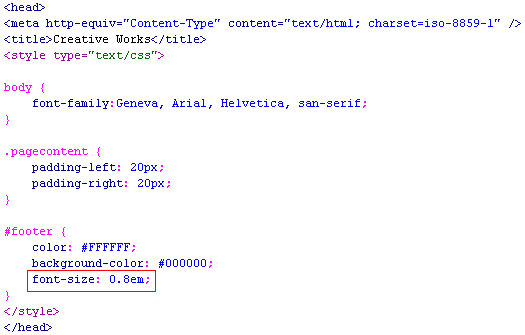
Using em to Size FontsWe want to make the footer font 80% smaller than normal. So add the following property to the #footer id selector...
em is a relative font size unit. By saying 0.8em, we are telling the browser to render that font size to be 80% smaller than what you would normally have rendered it. And in the browser, you see that indeed that is the case...
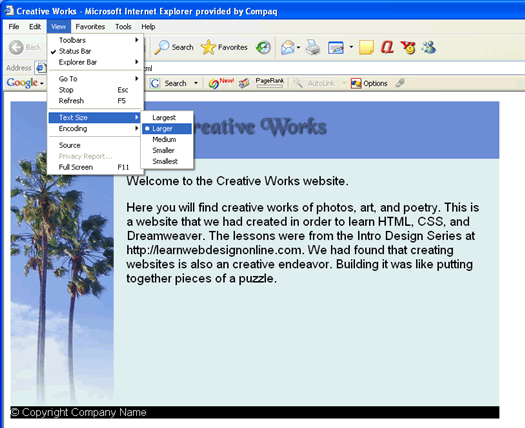
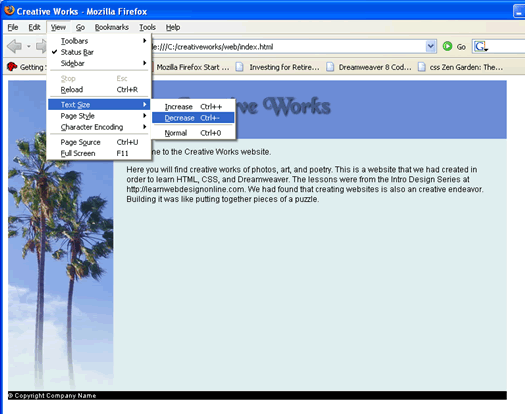
The em unit is known as a relative font size unit because it is not fixed at a specific pixel or point size. For example, the user is free to increase the font size in his or her browser ...
And the font size will become bigger. Yet the footer text always remains 80% the size of the main text. Similarly if the user resizes the font smaller. This time, I use Firefox...
Now make sure you set both browser back to normal text size. In the next lesson, we will add padding to footer and learn about CSS shortcut notation.
|
 |
 |
| Roadmap | Lessons | Tutorials | Videos | Books | Links | About |
|
|