|
Style LinksPrevious lesson, we had the following ...
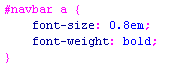
Let make the links smaller and bold it. Add the following CSS rule ...
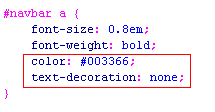
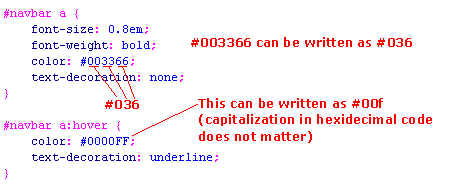
This selector is a bit different in that it has two elements: #navbar a. This means that the selector will select all <a> tags that are nested within the element with id navbar. Hence we are styling all links within the navbar div. Now we want to add an hover effect on the link. We first stylize the default state of the links to be a deep blue #003366 color without underline...
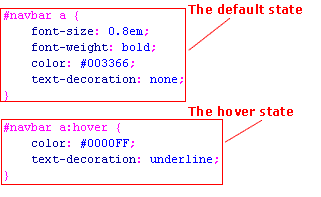
For the hover state, we want to brighten up the blue to color #0000FF and we want to add in the underline. For the hover state, we need a whole new CSS rule that employes the :hover psuedo-class as shown...
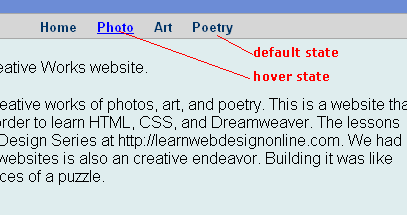
This rule will apply its style when the mouse is hovered over the <a> tag that is within the navbar div. So the default states and hover states looks like ...
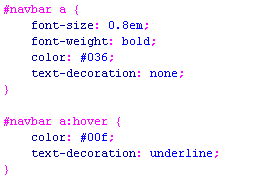
Short Cut Color NotationNote that if you hexdecimal color code have their digits in pairs ...
then you can use the shortcut notation as in the below...
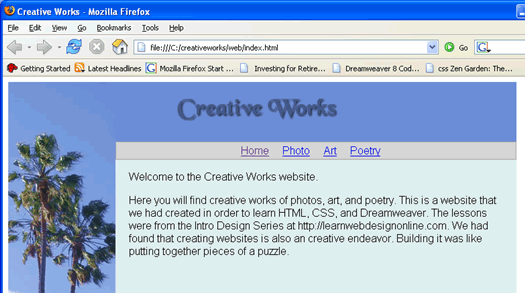
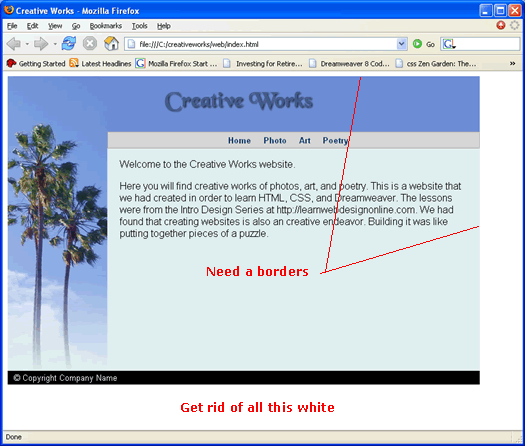
Our Page Now Looks Like
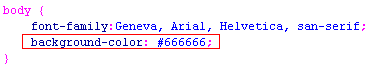
The Final TouchesWhat is still left is to put a dark gray (#666666) background on the <body> tag, so we don't see all this white. In the last class, we had set the background color though the page properties. This time we will just write the CSS code ...
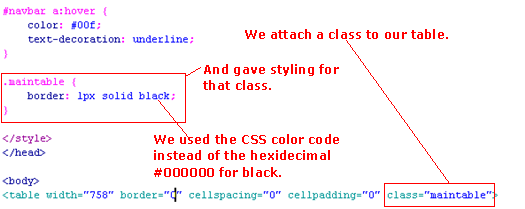
We want to put a border around our page (or table in this case).
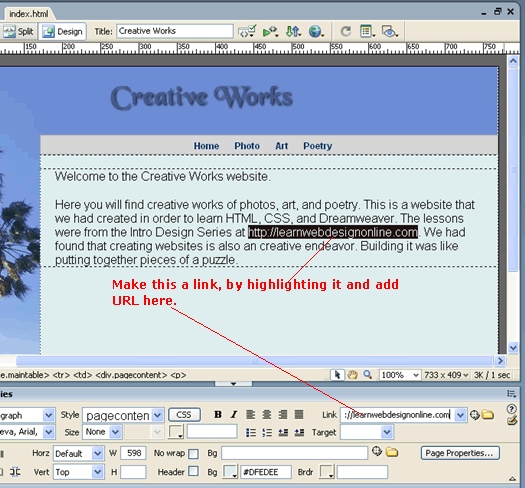
Note that we used the color name value for black this time instead of the hexidecimal code. You can do this provided that the color is one of the sixteen official color name values listed here. Switching to design view, we see that in our text, we want to make one link...
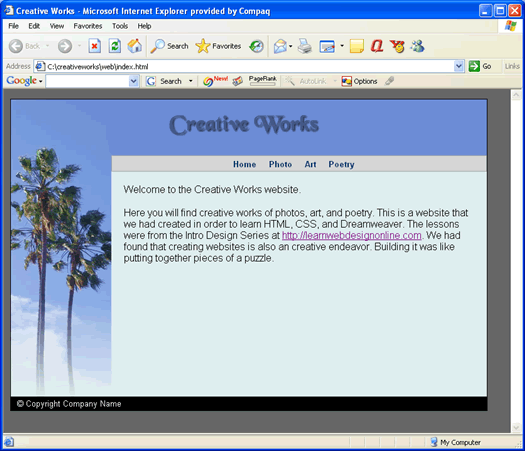
Test in both Firefox and IE.
It looks much better now. Download: code5.zip In the next lesson, you will complete the site by making the other three pages.
|
 |
 |
| Roadmap | Lessons | Tutorials | Videos | Books | Links | About |
|
|