|
Navigation BarIn the previous lesson, we had stylized the footer.
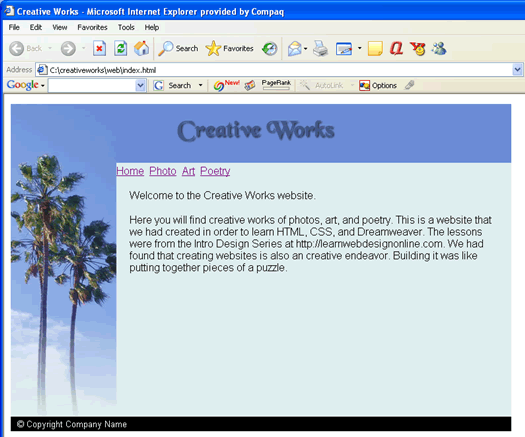
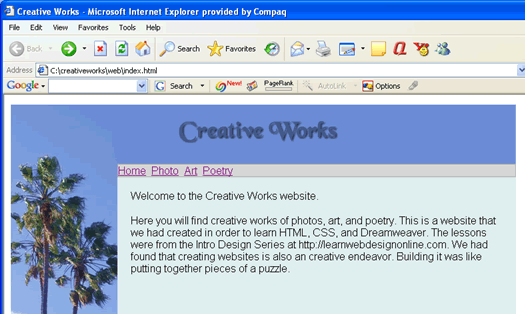
Now we will add in the navigation bar right under the title image and above the page content.
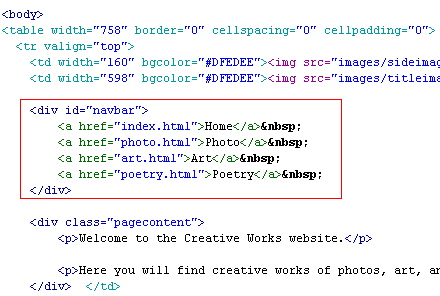
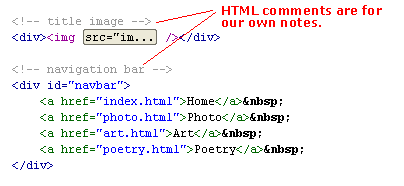
We use a div as a containing element for the navigation bar. And we gave this div an id called navbar. It would have worked if we used a class. But since we are going to have at most one navbar per page, I choose to use and id selector rule to stylize the navbar. Inside this navbar, we put in four links as shown.
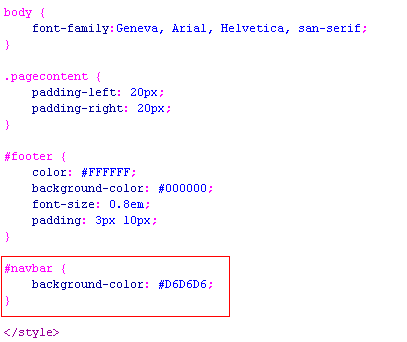
We need to attach a style to the navbar id. We give it a gray background ...
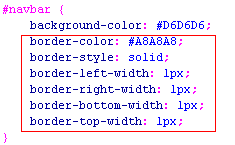
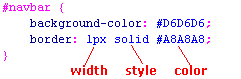
Now we give it a one pixel dark gray border all around...
This can be be written in short-hand form by ...
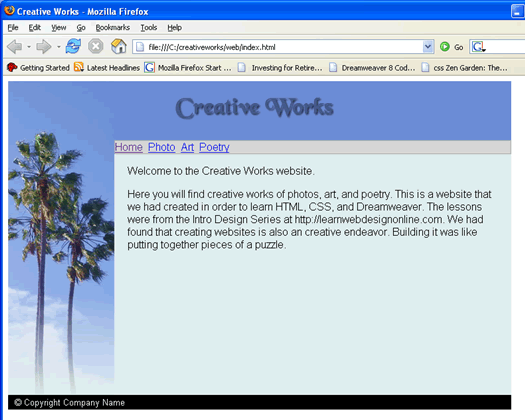
We just lump all the values together after the colon. The order of the values does not really matter, but I always like to put it in this form. Since the property name is border, the values are applied to all four borders. And if you look at it using Firefox, it should look like ...
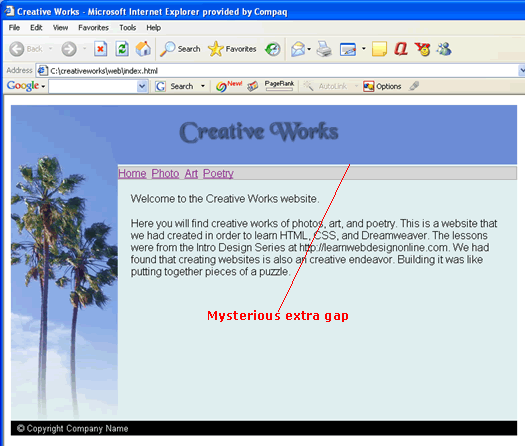
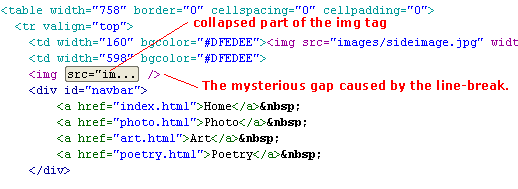
However, when you look at it in Internet Explorer 6.0 for Windows, you get an mysterious space ...
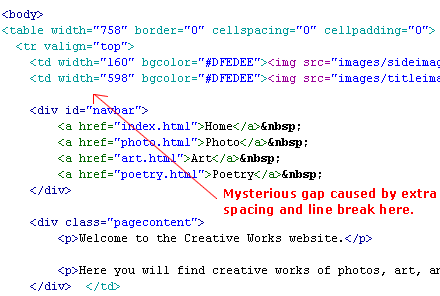
Now you know that different browsers can sometimes render the same code in different ways. This cross-browser compatibilities issue becomes even greater with CSS layout and code. In the Intermediate CSS course, we look at some of these issues and their workarounds. That is why we should always test in both browsers. The gap in Internet Explorer was caused by the line break between the <img> tag and the <div> tag.
Even if we remove the blank line ...
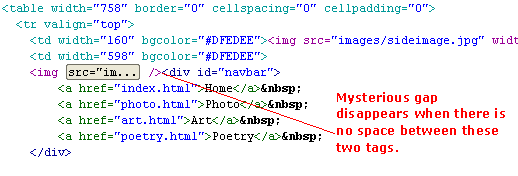
the mysterious gap does not disappear. That is because it is the line-break between the <img> and the <div> tag. Note that I have code-collapsed the long list of attributes of the img tag. See here for more on Dreamweaver 8's new code collapse feature. When we have no space between the two tags...
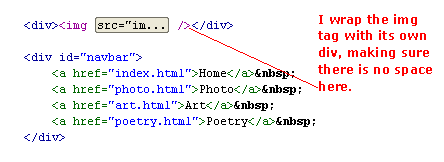
then the space disappears. However, I don't like to have the <img> and the <div> on the same line. It looks funny. So an alternative is to put a wrapper div around the <img> tag. As in ...
And this looks fine without the extra gap.
If you still see the gap, expand the collapsed code and make sure there is not space between the end of the <img> tag and the </div> tag. I have seen some problems with the code collapse feature giving extra spaces at the end of the img tag. The nice thing about using the extra div is now I can organize my code the way I want it and can even add in HTML comments as well...
In the next lesson, we will center the links.
|
 |
 |
| Roadmap | Lessons | Tutorials | Videos | Books | Links | About |
|
|